
How to Transfer Contacts from Android to iPhone
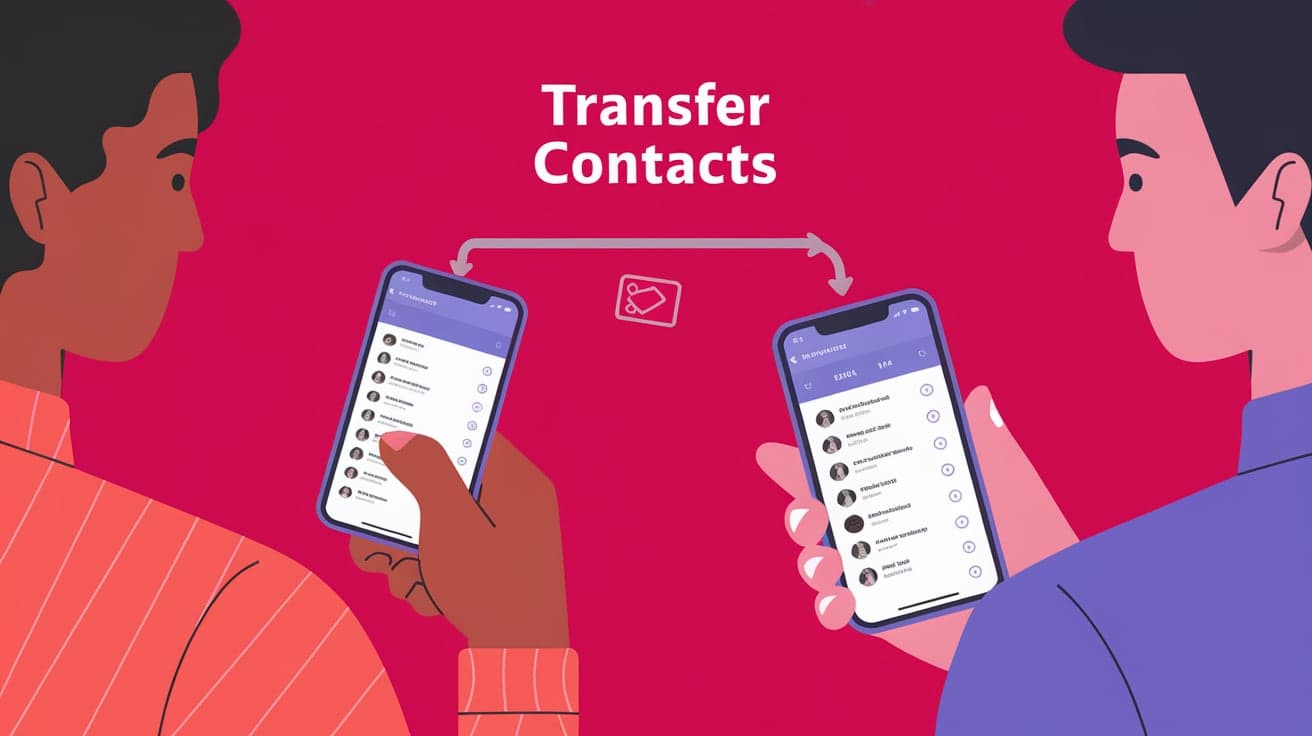
Switching from an Android to an iPhone can be exciting, but transferring your contacts might feel a bit overwhelming. Your contact list is essential—it’s how you stay connected with friends, family, and work. The good news? Apple has made it super easy to transfer contacts from Android to iPhone, and there are multiple ways to do it.
Whether you prefer using apps, syncing accounts, or manual methods, this guide will walk you through each step so you can get started with your new iPhone stress-free.
Why Transferring Contacts Is Important
When you move to a new iPhone, having your contacts in place ensures you don’t lose touch with anyone. Here are a few reasons to transfer them:
Convenience: It’s easier to call, text, or email without re-adding everyone manually.
Continuity: Ensures a smooth transition to your new device.
Time-Saving: Automated processes save you the hassle of adding contacts one by one.
Now let’s explore the best ways to transfer your contacts.
Using the Move to iOS App
The Move to iOS app, developed by Apple, is one of the easiest ways to transfer contacts. It’s free and works seamlessly with new iPhones.
Steps to Transfer Contacts with Move to iOS
Install the App on Your Android:
- Download the Move to iOS app from the Google Play Store.
Set Up Your New iPhone:
- During the setup process, choose “Move Data from Android.”
Connect the Devices:
Open the Move to iOS app on your Android and follow the on-screen instructions.
Your iPhone will display a code—enter it on your Android device to connect.
Select Contacts:
- Choose “Contacts” from the list of data to transfer.
Complete the Transfer:
- Wait for the process to finish. Once done, your contacts will appear on your iPhone.
Why Use This Method?
This app is perfect if you’re setting up a new iPhone for the first time and want to transfer multiple types of data, not just contacts.
Syncing Contacts with Google Account
If your contacts are stored in a Google account, syncing them to your iPhone is quick and simple.
Steps to Sync Contacts via Google
Ensure Contacts Are Synced to Google:
- On your Android, go to Settings > Accounts > Google > Sync Contacts.
Add Google Account to Your iPhone:
On your iPhone, go to Settings > Contacts > Accounts > Add Account.
Choose “Google” and sign in with your account credentials.
Enable Contact Syncing:
- Toggle the switch next to “Contacts” to sync them to your iPhone.
Check Your Contact List:
- Open the Contacts app on your iPhone to confirm the transfer.
Why Use This Method?
It’s ideal if you’ve been using Google services for email and calendar, as everything integrates seamlessly.
Exporting Contacts as a vCard File
If you prefer a manual approach, exporting contacts as a vCard (VCF file) is a reliable method.
Steps to Transfer Contacts via vCard
Export Contacts from Android:
Open the Contacts app on your Android.
Go to Settings > Export and save the contacts as a .vcf file.
Send the vCard File to Your iPhone:
- Email the file to yourself or transfer it using a cloud service like Google Drive.
Import Contacts on iPhone:
Open the email or cloud service on your iPhone.
Tap the .vcf file and select “Add All Contacts.”
Why Use This Method?
This method is simple and doesn’t require setting up accounts or apps. It’s great for a one-time transfer.
Using a SIM Card to Transfer Contacts
You can also use your SIM card to move contacts from Android to iPhone, though this method has some limitations.
Steps to Transfer Contacts via SIM Card
Save Contacts to Your SIM on Android:
- Open the Contacts app and go to Settings > Export to SIM card.
Insert SIM Card into Your iPhone:
- Remove the SIM card from your Android and place it in your iPhone.
Import SIM Contacts on iPhone:
- Go to Settings > Contacts > Import SIM Contacts.
Switch Back to Your Original SIM (Optional):
- If you’re using a different SIM for your iPhone, switch it back after the transfer.
Why Use This Method?
It’s handy if you have a small number of contacts to transfer and don’t mind swapping SIM cards.
Using Third-Party Apps
If the above methods don’t work for you, third-party apps can help. Apps like My Contacts Backup or Copy My Data make the transfer process easy.
Steps to Use Third-Party Apps
Download a Transfer App:
- Install an app like My Contacts Backup on your Android device.
Export Contacts:
- Use the app to create a backup file of your contacts.
Send the File to Your iPhone:
- Email the backup file or use a cloud service to access it on your iPhone.
Import Contacts:
- Open the file on your iPhone and add the contacts.
Why Use This Method?
These apps are user-friendly and work well for transferring data without requiring an internet connection.
Tips for a Smooth Transfer
Back Up Your Contacts: Always back up your contacts on your Android before starting the transfer.
Check for Duplicates: After transferring, review your contact list to remove duplicates.
Keep Your Accounts Synced: If you frequently switch devices, syncing contacts to an account like Google makes future transfers easier.
Test After Transfer: Verify that your important contacts are available and accessible on your iPhone.
Conclusion
Switching from Android to iPhone doesn’t have to be complicated. Whether you use Apple’s Move to iOS app, sync with your Google account, or manually transfer contacts using a vCard file or SIM card, there’s a method to suit your needs. By following these steps, you’ll ensure your contacts are safely and quickly transferred to your new iPhone, saving you time and effort. With a bit of preparation, the transition can be smooth and stress-free.
FAQs
Can I transfer contacts without a computer?
Yes, you can use the Move to iOS app, Google account syncing, or third-party apps like My Contacts Backup to transfer contacts without a computer.
Will transferring contacts delete them from my Android?
No, transferring contacts doesn’t delete them from your Android. The original data remains intact unless you manually delete it.
Do I need Wi-Fi to transfer contacts?
Wi-Fi is required for methods like Move to iOS or Google syncing but not for transferring contacts via SIM card or vCard file.
What if my contacts don’t transfer?
Double-check that syncing or exporting was completed correctly. Restart both devices and try the process again.
Can I transfer only specific contacts?
Yes, you can select specific contacts to export or sync depending on the method you choose, such as vCard files or manual selection in Google Contacts.
Also read -




