
How to Scan Documents on iPhone
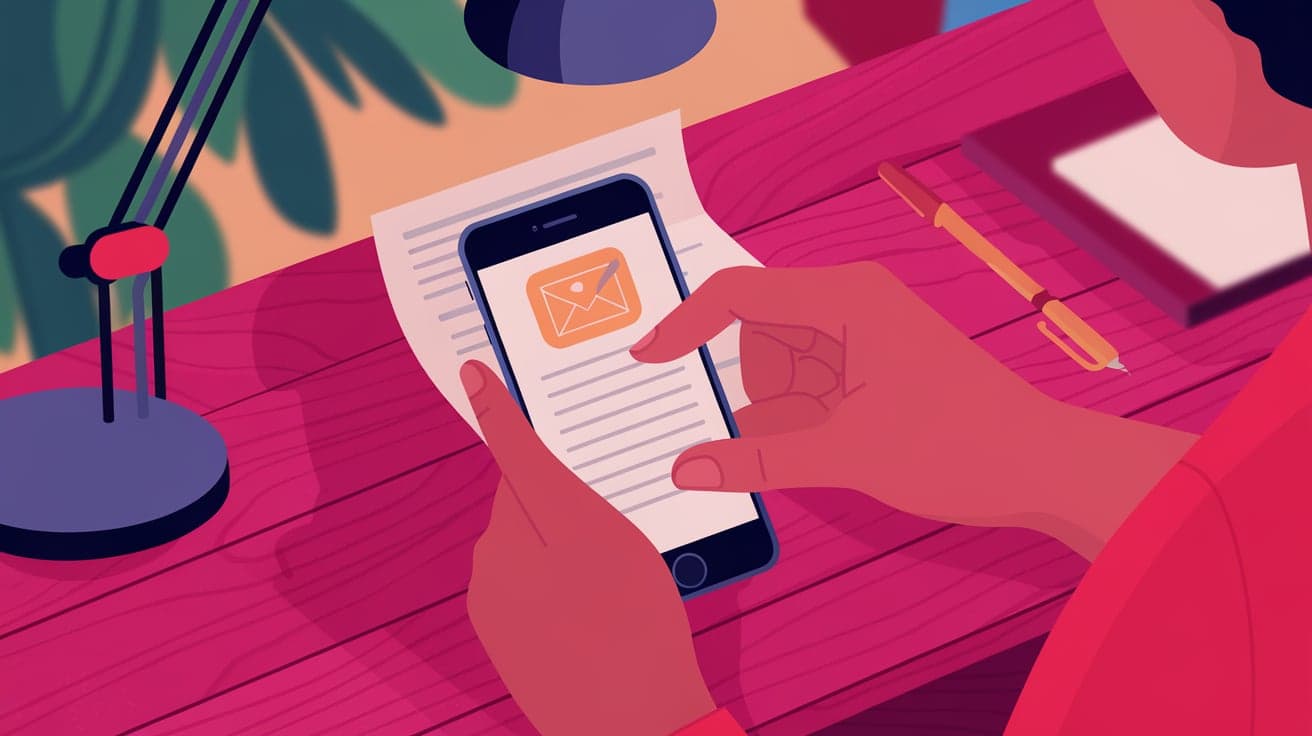
Scanning documents used to require a dedicated scanner, but with your iPhone, you can easily scan and save documents in high quality within seconds. Whether you need to send signed contracts, save receipts, or digitize handwritten notes, your iPhone makes it simple. The built-in tools and apps like Notes, Files, and third-party options ensure you’re covered for any scanning task.
In this guide, I’ll show you step-by-step how to scan documents on your iPhone, share tips for getting the best results, and explore some useful apps. By the end, you’ll feel confident scanning documents anytime, anywhere.
Why Scan Documents on an iPhone?
Using your iPhone as a scanner has several advantages:
Convenience: You can scan documents anytime without needing a separate device.
High Quality: iPhones provide sharp and clear scans, even for detailed documents.
Sharing Made Easy: Scans can be saved as PDFs or images and quickly shared via email or apps like WhatsApp and Google Drive.
Organization: Digitized documents reduce clutter and make it easier to find what you need.
Let’s dive into the methods available for scanning documents with your iPhone.
Scanning Documents Using the Notes App
The built-in Notes app on your iPhone has a powerful document scanning feature. It’s easy to use and works well for most everyday needs.
Steps to Scan with Notes:
Open the Notes app.
Create a new note or select an existing one.
Tap the Camera icon above the keyboard and choose Scan Documents.
Position the document in view of the camera. The app will automatically detect the edges and capture the scan. If it doesn’t, tap the shutter button.
Adjust the corners if needed and tap Keep Scan.
Add more pages if necessary or tap Save when finished.
The scanned document is now saved in your note. You can share it as a PDF or image directly from the app.
Scanning Documents Using the Files App
The Files app is another built-in tool on your iPhone that supports document scanning. This method is ideal if you want to organize your scans directly in iCloud or other cloud storage services.
Steps to Scan with Files:
Open the Files app.
Navigate to the folder where you want to save the scan.
Tap the Three Dots in the top-right corner and select Scan Documents.
Position the document and let the app detect it automatically, or tap the shutter button to capture.
Adjust the scan if needed and tap Save.
Your scanned document will be stored in the folder you selected, ready for sharing or editing.
Using Third-Party Apps for Scanning
While the Notes and Files apps are great, third-party apps like Adobe Scan, CamScanner, and Microsoft Lens offer additional features such as OCR (Optical Character Recognition) for text extraction.
Benefits of Third-Party Apps:
OCR: Convert scanned text into editable formats.
Cloud Integration: Directly save scans to services like Google Drive or Dropbox.
Customization: Adjust filters, crop, and enhance scans for better quality.
Recommended Apps:
Adobe Scan: Free with advanced OCR capabilities.
CamScanner: Offers robust editing tools and cloud storage options.
Microsoft Lens: Great for scanning whiteboards, notes, and documents with auto-enhance features.
To use these apps, download them from the App Store, follow the in-app instructions to scan, and save your documents in the desired format.
Tips for Better Scans
Use Good Lighting: Place your document in a well-lit area to avoid shadows and ensure clear scans.
Flat Surface: Lay the document on a flat surface to prevent distortion.
Hold Steady: Keep your iPhone steady to avoid blurry scans.
Use Filters: Apply filters like grayscale or black-and-white for improved readability, especially for text-heavy documents.
Check Edges: Review the captured scan to ensure all corners are included.
These tips will help you achieve high-quality scans every time.
Sharing and Saving Scanned Documents
Once you’ve scanned your document, you might want to share or save it for future use. Here’s how:
Sharing:
Tap the Share icon in the app where your scan is saved.
Choose your preferred method (email, messaging apps, or AirDrop).
Select the format (PDF or image) if prompted.
Saving:
Save directly to iCloud Drive, Google Drive, or other storage apps.
Use the Files app to organize your scans into folders for easy access.
These options ensure your scanned documents are always accessible when you need them.
Common Uses for Scanned Documents
Work: Scan contracts, invoices, or meeting notes for professional purposes.
School: Digitize handwritten notes, assignments, or reference materials.
Personal: Save important documents like passports, IDs, or receipts for easy access and backups.
By scanning and organizing documents, you save time and reduce paper clutter.
Conclusion
Scanning documents on your iPhone is a game-changer for managing your files efficiently. With tools like the Notes and Files apps, as well as third-party options, you have everything you need to scan, save, and share documents effortlessly. Whether you’re scanning for work, school, or personal use, the process is simple, quick, and produces high-quality results.
With the tips and methods in this guide, you can confidently handle any document scanning task using just your iPhone. No bulky scanner required!
FAQs
Can I scan documents on my iPhone without a third-party app?
Yes, you can use the built-in Notes or Files app to scan documents without needing any additional apps.
How do I convert scanned documents into editable text?
Use third-party apps like Adobe Scan or Microsoft Lens for OCR functionality, which converts scanned text into editable formats.
What’s the best app for scanning documents on iPhone?
The Notes app is great for basic scanning, but for advanced features like OCR, Adobe Scan and CamScanner are excellent choices.
Can I save scanned documents as a PDF?
Yes, both the Notes and Files apps allow you to save scanned documents as PDFs. You can also use third-party apps for more customization.
How do I ensure my scans are high quality?
Use good lighting, a flat surface, and steady hands when scanning. Review and crop the scan if needed to include all edges clearly.
Also read -




