
Quick Guide to Renaming Your iPhone
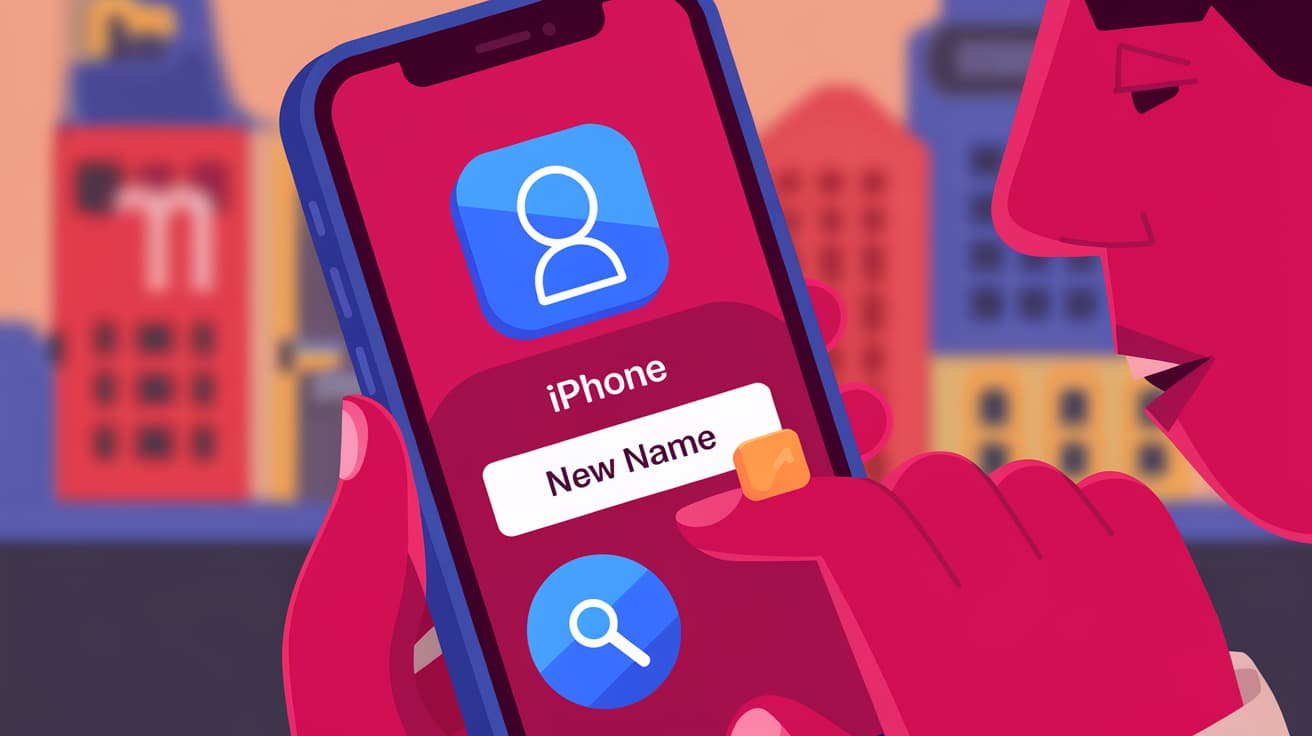
Renaming your iPhone might seem like a small detail, but it can make a big difference in keeping things organized. Whether you're connecting to Bluetooth devices, sharing files through AirDrop, or using Find My iPhone, having a personalized name for your device makes it easier to identify. Plus, it's a nice touch that gives your phone a unique identity.
If you're not sure how to rename your iPhone, don’t worry—it's a simple process. In this guide, I’ll walk you through the steps to rename your iPhone using both the device settings and iTunes or Finder. We’ll also explore some tips on choosing the perfect name and answer common questions to ensure you get it right.
Why Rename Your iPhone?
Renaming your iPhone can be useful for several reasons:
Easier Identification: When you connect your iPhone to Bluetooth speakers, smart TVs, or other devices, it’s much easier to find your phone if it has a unique name.
Personalization: Giving your phone a custom name makes it feel more personal and reflects your style or personality.
Avoiding Confusion: If you’re in a household with multiple iPhones, having a distinct name ensures you don’t accidentally select the wrong device during file sharing or syncing.
Now that you know why it’s helpful, let’s dive into how you can rename your iPhone.
How to Rename iPhone Using Settings
The easiest and most direct way to rename your iPhone is through the settings on the device itself. Here’s how to do it:
Steps to Rename Your iPhone:
Open the Settings app on your iPhone.
Scroll down and tap General.
Select About at the top of the menu.
Tap Name. You’ll see the current name of your iPhone displayed.
Enter the new name you want for your iPhone. Be creative or practical—whatever suits you!
Tap Done to save your changes.
Benefits of Renaming Through Settings
Quick and easy.
Requires no external tools or software.
Works on all iPhone models and iOS versions.
This method updates your iPhone’s name instantly and ensures the new name appears across all connected devices and services.
How to Rename iPhone Using iTunes or Finder
If you prefer to use a computer, you can rename your iPhone through iTunes (on Windows or older macOS versions) or Finder (on newer macOS versions). This method is especially useful if you’re already syncing your iPhone to your computer.
Steps for Renaming with iTunes or Finder:
Connect your iPhone to your computer using a Lightning cable.
Open iTunes (on Windows) or Finder (on macOS Catalina or later).
Select your iPhone from the list of devices.
Click on the current name of your iPhone at the top of the screen.
Type the new name and press Enter.
Disconnect your iPhone to save the changes.
Why Use This Method?
Useful for people who regularly sync their iPhones with a computer.
Allows you to manage your device name alongside other syncing or backup tasks.
Choosing a Good Name for Your iPhone
While naming your iPhone is entirely up to you, here are some tips to help you choose a name that’s practical and fun:
Make It Unique: Avoid generic names like “iPhone” to prevent confusion, especially in public spaces.
Keep It Short: Long names can be harder to read on small screens or devices with limited display space.
Reflect Your Style: Use a name that resonates with your personality or interests. For example, you could name your phone after a favorite character, hobby, or place.
Use Emojis: Adding emojis can make your iPhone name stand out and look more playful.
Consider Functionality: If you use multiple Apple devices, include identifiers like “John’s iPhone” or “Work iPhone” to distinguish between them.
How to Check If the New Name Is Applied
After renaming your iPhone, you may want to verify that the new name is updated across all devices and services. Here’s how you can check:
Bluetooth Devices: Turn on Bluetooth and check the list of connected devices to see if your iPhone’s new name appears.
AirDrop: Open AirDrop and see if your iPhone’s new name is displayed when sharing files.
iCloud: Log into your iCloud account and check if the updated name appears under your devices.
If the new name doesn’t appear, restart your iPhone to refresh the settings.
Troubleshooting Renaming Issues
Sometimes, you might encounter problems while renaming your iPhone. Here are a few common issues and their solutions:
Changes Not Saving:
Ensure you’ve tapped Done after entering the new name.
Restart your iPhone to apply the changes.
iTunes or Finder Not Recognizing Your iPhone:
Check the Lightning cable for any damage.
Update iTunes or Finder to the latest version.
Name Not Updating on Other Devices:
Ensure all devices are connected to the same iCloud account.
Wait a few minutes for the changes to sync across devices.
Conclusion
Renaming your iPhone is a simple yet effective way to personalize your device and make it easier to identify. Whether you choose to rename it through the settings or with iTunes/Finder, the process takes only a few minutes. A unique and creative name not only adds a personal touch but also prevents confusion when connecting to other devices or sharing files.
Now that you know how to rename your iPhone, go ahead and give your device a name that reflects your personality or purpose. It’s a small change, but one that can make a big difference in your daily interactions with technology.
FAQs
Can I rename my iPhone multiple times?
Yes, you can rename your iPhone as many times as you like. Simply follow the steps in the Settings app or use iTunes/Finder to update the name whenever you want.
Will renaming my iPhone affect any settings or data?
No, renaming your iPhone only changes its display name. It doesn’t affect your apps, settings, or personal data.
Why doesn’t my new iPhone name appear in Bluetooth settings?
If the new name doesn’t appear, try restarting your iPhone or disconnecting and reconnecting the Bluetooth device. This refreshes the connection and updates the name.
How long does it take for the new name to sync with iCloud?
The name change usually syncs with iCloud within a few minutes. If it doesn’t, ensure your iPhone is connected to Wi-Fi and logged into your iCloud account.
Can I add emojis to my iPhone’s name?
Yes, you can add emojis to your iPhone’s name. Simply type the emoji into the name field when renaming your device in Settings. It’s a fun way to personalize your iPhone!
Also read -




