
How to Record on an iPhone Without Video
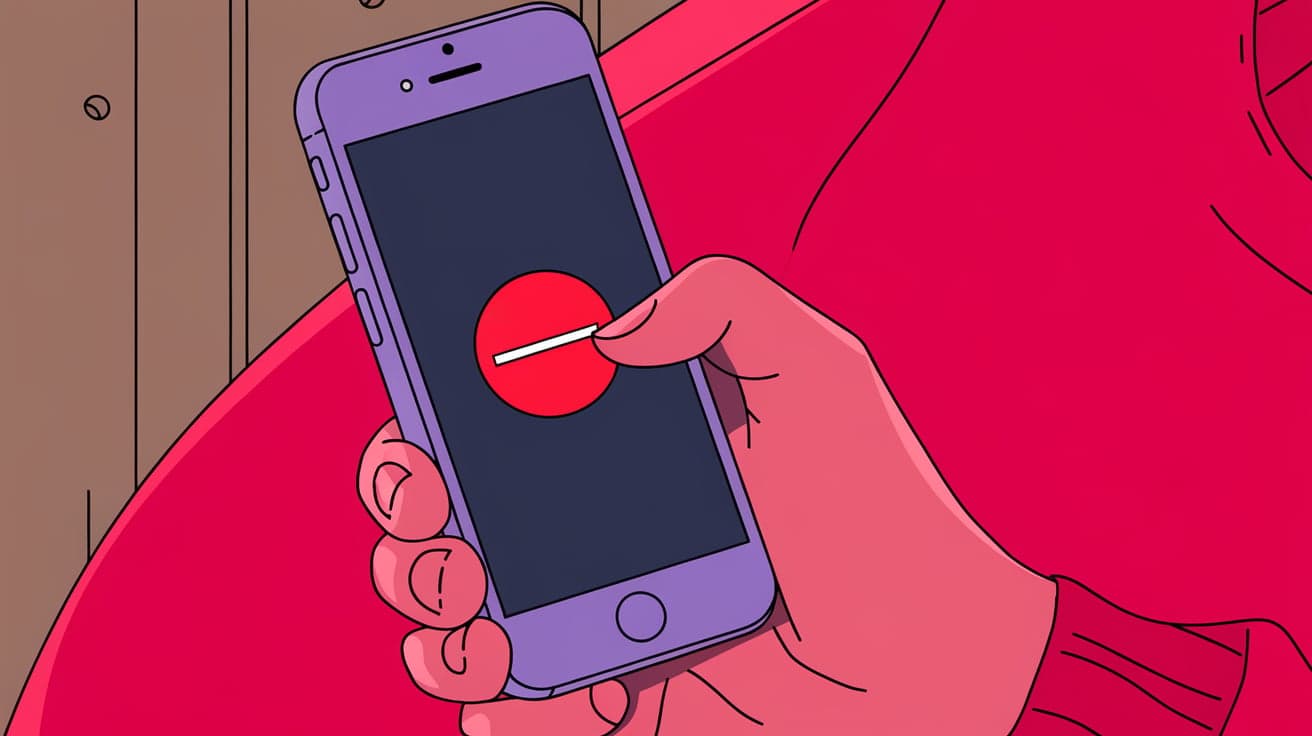
Your iPhone is a powerful tool for capturing audio, and sometimes you only need to record sound without the added complication of video. Whether it’s for saving lecture notes, recording a podcast idea, or capturing important voice memos, the iPhone offers several easy ways to do this. While most people know how to use their camera for video recording, not everyone realizes just how simple it is to record high-quality audio without turning on the camera.
This guide will walk you through all the options, from using built-in features like the Voice Memos app to trying out third-party tools. By the end, you’ll feel confident using your iPhone for sound-only recordings in any situation.
Why Record Without Video?
Recording without video has its advantages. Audio files take up much less storage space than video files, making them easier to save, share, and upload. Additionally, sound-only recordings are less distracting, especially in professional settings like interviews or meetings. Whether you’re a student, journalist, or casual user, knowing how to record just audio will save you time and effort.
Using the Voice Memos App
The easiest and most reliable way to record audio on an iPhone without video is by using the Voice Memos app. It’s already installed on your device, so there’s no need to download anything extra.
Steps to Record with Voice Memos
Open the Voice Memos app. If you can’t find it, use the search bar in your iPhone by swiping down on the home screen and typing "Voice Memos."
Tap the red circle button to start recording. You’ll see the waveform on the screen, which indicates that the app is picking up sound.
Tap the red square button when you’re done. Your recording will automatically save with a name based on the date and time.
Rename the recording if you want. Tap on the file, then choose “Edit Name” to give it a descriptive title.
Why Use Voice Memos?
Voice Memos is great because it’s simple, free, and works well for most situations. The audio quality is excellent, making it ideal for everything from quick reminders to high-quality recordings.
Recording Audio During a Phone Call
Recording a phone call is slightly more complicated because Apple doesn’t allow it natively on the iPhone due to privacy laws. However, there are workarounds using third-party apps or external devices.
Using Third-Party Apps
Apps like Rev Call Recorder or TapeACall Pro make it possible to record audio during phone calls. Here’s how you can use one:
Download a trusted call recording app from the App Store.
Follow the app’s setup instructions, which usually involve merging a third-party line into your call.
Start your call and record using the app’s built-in features.
Keep in mind that recording calls may require consent from all participants depending on your location, so always check the legal requirements before using these apps.
External Recorder Method
If apps aren’t an option, you can use an external recorder:
Put the call on speakerphone.
Place a recording device, such as another smartphone or a digital recorder, near your iPhone to capture the sound.
Save the audio file on the external device for future use.
Using GarageBand for Advanced Audio Recording
For more professional needs, GarageBand is an excellent option. It’s a free app from Apple that turns your iPhone into a mini recording studio.
How to Use GarageBand
Download GarageBand from the App Store if it’s not already installed.
Open the app and create a new project. Select “Audio Recorder” from the available options.
Tap the record button to start capturing audio. You can use built-in features like filters and effects to enhance the quality.
Stop the recording when done and export the file to your preferred storage location.
GarageBand is perfect for musicians, podcasters, and anyone needing high-quality, edited audio recordings.
Recording External Audio with a Microphone
To capture even better sound quality, consider using an external microphone with your iPhone. This is particularly useful for interviews, music recording, or professional audio projects.
Steps to Use an External Microphone
Plug the microphone into your iPhone. For most modern iPhones, you’ll need a Lightning to 3.5mm adapter unless the mic connects via Lightning or Bluetooth.
Open the Voice Memos app or another recording tool.
Start recording as you normally would. The app will automatically use the microphone as the audio source.
Using an external mic ensures that background noise is minimized and the audio quality is crisp.
Tips for Better Audio Recordings
Choose a Quiet Environment: Background noise can ruin an otherwise good recording. Always find a quiet space for the best results.
Keep the Microphone Steady: Avoid handling your iPhone or mic too much during the recording to prevent unnecessary noise.
Test Before Recording: Do a quick test run to ensure everything is working properly.
Use Headphones for Playback: When reviewing your recordings, headphones help you catch any unwanted noise.
Conclusion
Recording audio on an iPhone without video is straightforward once you know the right tools and techniques. Whether you use the built-in Voice Memos app, third-party apps for calls, or advanced tools like GarageBand, you have plenty of options to capture high-quality sound. For even better results, consider using an external microphone and always record in a quiet space. By mastering these methods, you’ll be ready to handle any audio recording situation with confidence.
FAQs
Can I record only audio on my iPhone without downloading an app?
Yes, you can use the built-in Voice Memos app, which is free and easy to use for audio-only recordings.
Why doesn’t Apple allow phone call recording natively?
Apple doesn’t include this feature to comply with privacy laws in many countries. Recording calls often requires consent from all parties involved.
How can I improve the audio quality of my recordings?
Use an external microphone, record in a quiet environment, and test your setup beforehand to ensure optimal sound quality.
What’s the best app for recording calls on an iPhone?
Apps like Rev Call Recorder and TapeACall Pro are popular for recording phone calls. Each has its pros and cons, so choose based on your needs.
Can I record audio during a FaceTime call?
Not directly. You can record the screen during a FaceTime call, but it won’t capture the audio. Using an external recording device is a better option for sound.
Also read -




