
How to Record a Conversation on iPhone
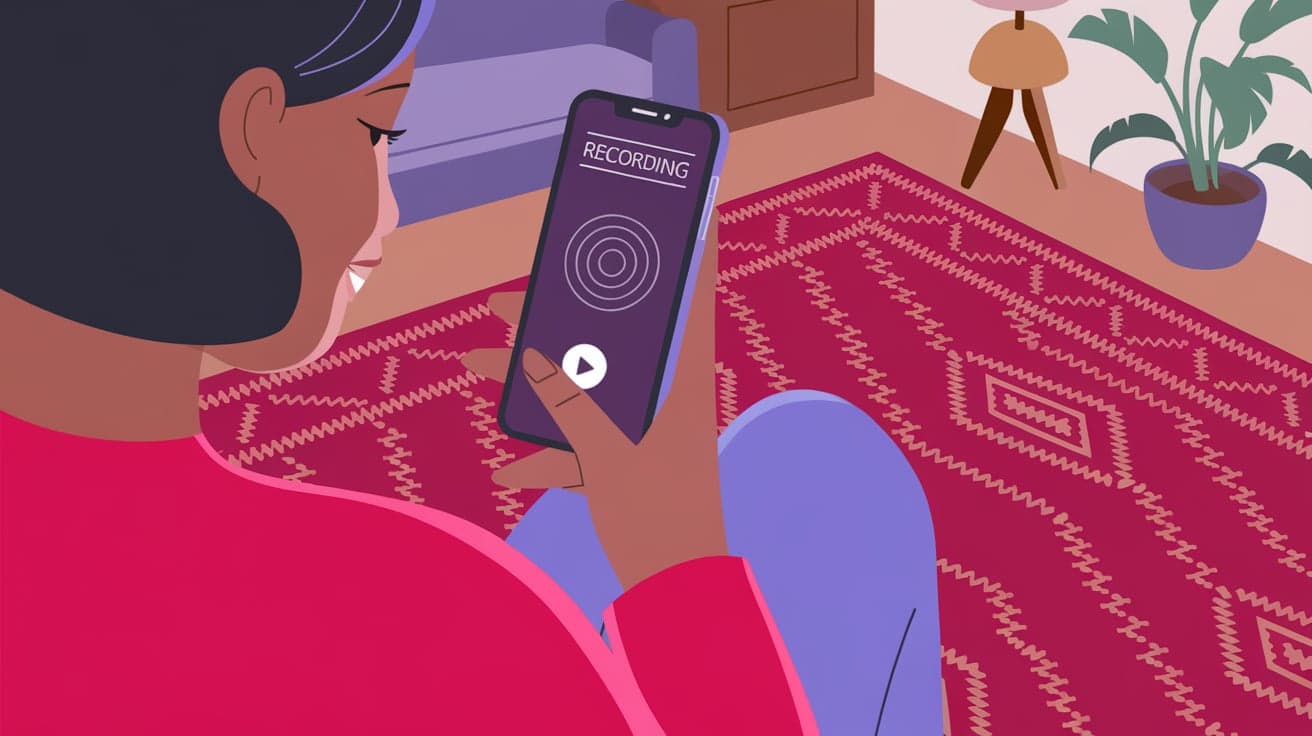
Capturing conversations on your iPhone can be incredibly useful. Whether it’s for a business meeting, an important interview, or simply a casual chat you want to save, knowing how to record audio effectively is a valuable skill. While Apple doesn’t provide a built-in call recording feature due to privacy laws, there are workarounds and third-party apps you can use to get the job done.
This guide will walk you through all the options, ensuring you can choose the best method for your needs. By the end, you'll feel confident recording conversations legally and efficiently.
Understanding the Legal Side of Recording Calls
Before diving into the how-to, let’s talk about legality. Recording a conversation without consent can lead to serious legal issues. In many countries, including the United States, laws differ by state. Some states require one-party consent, meaning only you need to know the call is being recorded. Others demand two-party consent, meaning everyone in the conversation must agree.
Always check your local laws and let the other person know you're recording to stay on the right side of the law. Transparency is key to avoiding complications.
Using the Voice Memos App
Your iPhone comes with the handy Voice Memos app, which is perfect for recording in-person conversations. Here’s how to use it:
Open Voice Memos: It’s pre-installed on your iPhone and can be found on your home screen or by searching for it.
Tap the Record Button: Once opened, tap the red circle to start recording. You can see the waveform move as the app captures audio.
Stop the Recording: Tap the red square when you’re done. The recording will automatically save with a timestamp and location.
Rename and Edit: You can rename the recording or trim it by tapping the three dots next to the file.
When to Use Voice Memos
Voice Memos is ideal for interviews, lectures, or personal notes. It offers excellent audio quality and a simple interface. However, it doesn’t work for phone calls.
Recording Phone Calls Using Apps
Since iPhones lack built-in call recording, third-party apps come to the rescue. Popular apps include Rev Call Recorder, TapeACall Pro, and Google Voice. Let’s break down how to use these apps.
Rev Call Recorder
Free to Download: The app is free, but you pay for transcription services if needed.
How It Works: It uses a three-way calling system to record your conversations. You’ll dial the app’s number first, merge the call, and then start recording.
Pros: Reliable and straightforward. Excellent for business calls.
Cons: Requires three-way call setup, which might feel clunky.
TapeACall Pro
Paid App: It has a one-time purchase fee or subscription model.
How It Works: Similar to Rev, it uses a three-way call system to record.
Pros: Unlimited recording time.
Cons: Costs money and requires merging calls.
Google Voice
Free for Basic Use: Available in the U.S., this service allows call recording for incoming calls.
How It Works: Set up Google Voice, enable call recording in settings, and press “4” during an active call to start recording.
Pros: Completely free.
Cons: Only works for incoming calls, not outgoing ones.
Using External Devices
If you prefer a no-software approach, an external recorder is a great option. Devices like the Sony Digital Voice Recorder or similar gadgets can record conversations directly from your iPhone's speaker.
Steps to Use External Devices
Enable Speakerphone: Start your call and turn on the speaker.
Place the Recorder Nearby: Position it close to your phone to capture clear audio.
Review the Recording: After the call, check the recorder to ensure everything was captured.
Pros and Cons
Pros: No need for apps or additional services.
Cons: Audio quality may suffer if there’s background noise.
Recording Conversations on FaceTime
FaceTime conversations can also be recorded, but this requires a workaround. Screen recording with audio capture isn’t natively supported for FaceTime, so you’ll need to pair it with an external device.
Steps:
Enable Screen Recording: Go to Settings > Control Center > Add Screen Recording.
Record with External Audio: Use a second device to capture the audio while screen recording.
This method works best for video calls or presentations but isn’t ideal for private conversations.
Tips for Better Recordings
Find a Quiet Spot: Minimize background noise for clearer audio.
Test Beforehand: Do a quick test to ensure your method works.
Use High-Quality Microphones: If possible, use an external mic for improved sound clarity.
Store Files Securely: Save recordings in a secure location, like iCloud or Google Drive.
Summary
Recording a conversation on your iPhone is entirely possible with the right tools and techniques. Whether you’re using the built-in Voice Memos app, third-party software, or external devices, there’s an option to suit your needs. Just remember to prioritize legal compliance and respect the privacy of others. With these steps, you can confidently capture any conversation you need to save for later.
FAQs
How do I record a phone call on my iPhone without an app?
Unfortunately, there’s no native way to record calls on an iPhone without an app. You can use external devices, like a voice recorder, and enable speakerphone for a manual solution.
Is it legal to record conversations on iPhone?
The legality depends on your location. Some places require one-party consent, while others demand two-party consent. Always check your local laws and inform participants before recording.
What’s the best free app for call recording on iPhone?
Rev Call Recorder and Google Voice are popular free options. Rev offers high-quality recordings, while Google Voice is entirely free for incoming calls.
Can I use Voice Memos to record phone calls?
No, the Voice Memos app can only record audio from your surroundings. It doesn’t support phone call recording.
Why doesn’t Apple allow built-in call recording?
Apple avoids this feature to comply with global privacy laws. Offering a built-in recorder could lead to misuse and legal challenges across various regions.
Also read -




