
How to Turn Off iPhone 14
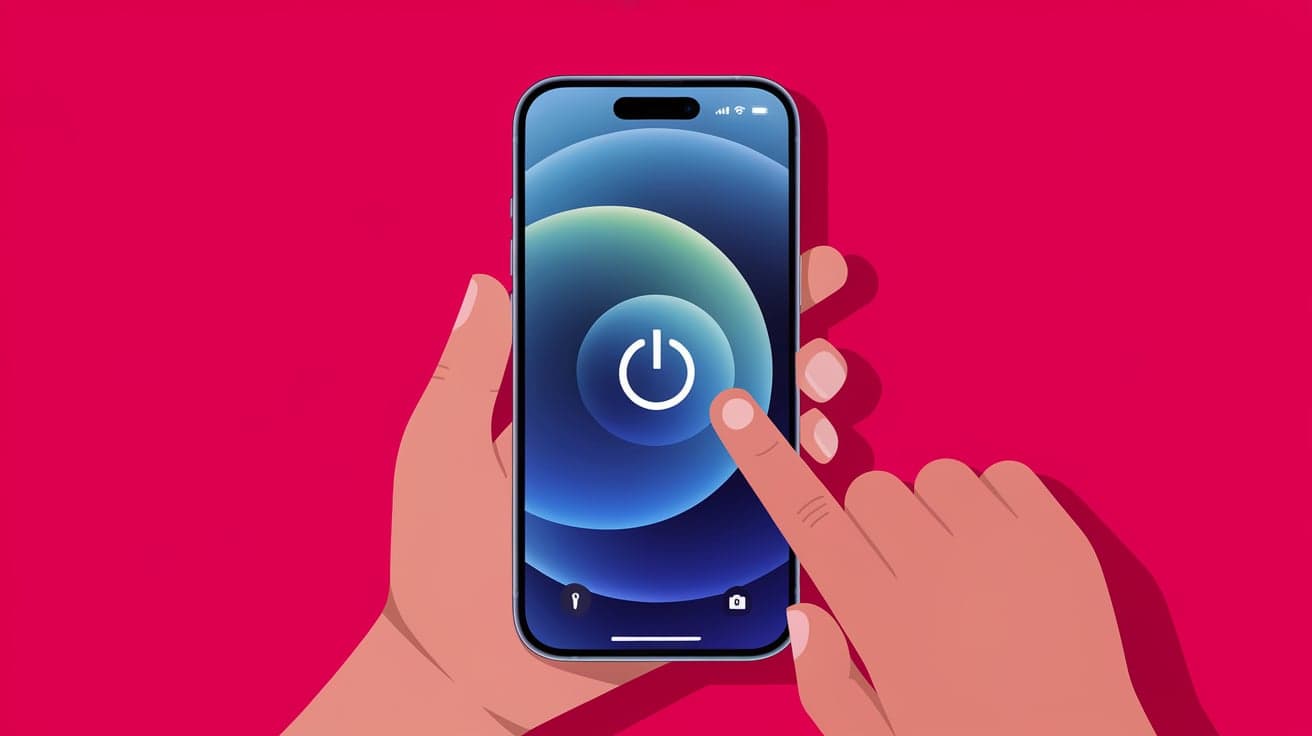
Owning the latest iPhone 14 is exciting, but something as simple as turning it off might seem confusing if you’re new to the device or upgrading from an older model. Apple has redesigned the way you interact with your phone over the years, so powering it down isn’t as straightforward as it used to be. Whether you need to shut it down for troubleshooting, save battery life, or simply reset it, I’ll guide you step by step.
In this article, I’ll cover multiple methods to turn off your iPhone 14, including using the physical buttons, the settings menu, and Siri. I’ll also explain what to do if your buttons aren’t working or your screen is frozen.
Method 1: Turning Off iPhone 14 Using Buttons
The most common way to turn off your iPhone 14 is by using the physical buttons on the side of the device.
Steps:
Locate the Buttons:
Find the Side button on the right side of your iPhone.
Locate either Volume Up or Volume Down on the left side.
Press and Hold:
- Simultaneously press and hold the Side button and either the Volume Up or Volume Down button.
Slide to Power Off:
After a few seconds, you’ll see the Slide to Power Off slider appear on the screen.
Drag the slider to the right to turn off your iPhone.
This method is quick and works in most situations, especially if your phone is functioning normally.
Method 2: Turning Off iPhone 14 via Settings
If you find it difficult to use the buttons or prefer not to, you can turn off your iPhone 14 through the Settings app.
Steps:
Open Settings:
- Tap the Settings app on your home screen.
Go to General:
- Scroll down and select General.
Shut Down Option:
- Scroll to the bottom and tap Shut Down.
Slide to Power Off:
- The Slide to Power Off slider will appear. Drag it to the right to turn off your phone.
This method is especially useful if your physical buttons aren’t working properly.
Method 3: Turning Off iPhone 14 Using Siri
Apple’s virtual assistant, Siri, can also help you turn off your iPhone. While this method doesn’t directly power off the device, it guides you to the shutdown screen.
Steps:
Activate Siri:
- Say “Hey Siri” or press and hold the Side button to activate Siri.
Ask Siri to Turn Off Your iPhone:
- Say, “Turn off my iPhone.”
Follow the Prompt:
- Siri will display the Slide to Power Off slider. Drag the slider to turn off the phone.
This hands-free method is convenient when you can’t use your hands or buttons.
Method 4: Force Restarting Your iPhone 14 (When It’s Frozen)
If your iPhone 14 is unresponsive or frozen, a force restart might be necessary instead of a standard shutdown.
Steps:
Press Volume Up:
- Quickly press and release the Volume Up button.
Press Volume Down:
- Quickly press and release the Volume Down button.
Hold the Side Button:
- Press and hold the Side button until the Apple logo appears on the screen.
This method doesn’t display the Slide to Power Off option but will restart your iPhone forcefully, which is helpful for troubleshooting.
When to Turn Off Your iPhone 14
Knowing when and why to turn off your phone can be as important as knowing how to do it. Here are some scenarios where shutting down your iPhone is useful:
Troubleshooting: Restarting your iPhone can solve many minor issues, like app crashes or connectivity problems.
Saving Battery Life: If you’re not using your phone for an extended period, turning it off helps conserve battery life.
Hardware Checks: Turning off your iPhone is necessary when inserting or removing your SIM card.
By regularly powering down your device, you can also improve its overall performance and longevity.
What to Do If You Can’t Turn Off Your iPhone 14
If your iPhone 14 doesn’t respond to the standard shutdown methods, try these troubleshooting tips:
Check Button Functionality: Ensure that the physical buttons are working properly.
Use AssistiveTouch: Enable AssistiveTouch from Settings > Accessibility > Touch to access virtual buttons.
Force Restart: Use the force restart method to resolve unresponsiveness.
Update Software: Go to Settings > General > Software Update to ensure your iPhone is running the latest version of iOS.
If none of these solutions work, contact Apple Support for professional assistance.
Tips for Maintaining Your iPhone 14
Regular Updates: Keep your iOS software updated for optimal performance.
Avoid Overheating: Turn off your iPhone if it overheats during prolonged use.
Use Accessories Wisely: Ensure your phone’s buttons and ports are free from damage by using compatible accessories.
Conclusion
Turning off your iPhone 14 is a simple but essential task that can come in handy for troubleshooting, saving battery life, or preparing your phone for maintenance. Whether you prefer using the physical buttons, the settings menu, or Siri, there’s a method that works for you.
Now that you know how to power down your iPhone 14 in various scenarios, you can handle any situation with ease. If your phone ever becomes unresponsive, don’t forget about the force restart option. And remember, keeping your iPhone updated and well-maintained will ensure it stays in good shape for years to come.
FAQs
1. How do I turn off my iPhone 14 without using the buttons?
You can turn off your iPhone 14 by going to Settings > General > Shut Down and using the on-screen slider.
2. What should I do if my iPhone 14 freezes and won’t turn off?
Perform a force restart by quickly pressing Volume Up, Volume Down, and then holding the Side button until the Apple logo appears.
3. Can Siri turn off my iPhone 14 completely?
Siri can guide you to the Slide to Power Off screen, but you’ll need to manually slide to turn off the device.
4. Is it safe to turn off my iPhone 14 often?
Yes, it’s safe and can even improve performance. Regularly turning off your phone clears temporary files and can resolve minor glitches.
5. Why doesn’t the “Slide to Power Off” slider appear on my iPhone 14?
If the slider doesn’t appear, ensure you’re pressing the buttons correctly. If the problem persists, try restarting your phone or updating the iOS software.
Also read -




