
How to Slow Down a Video on iPhone
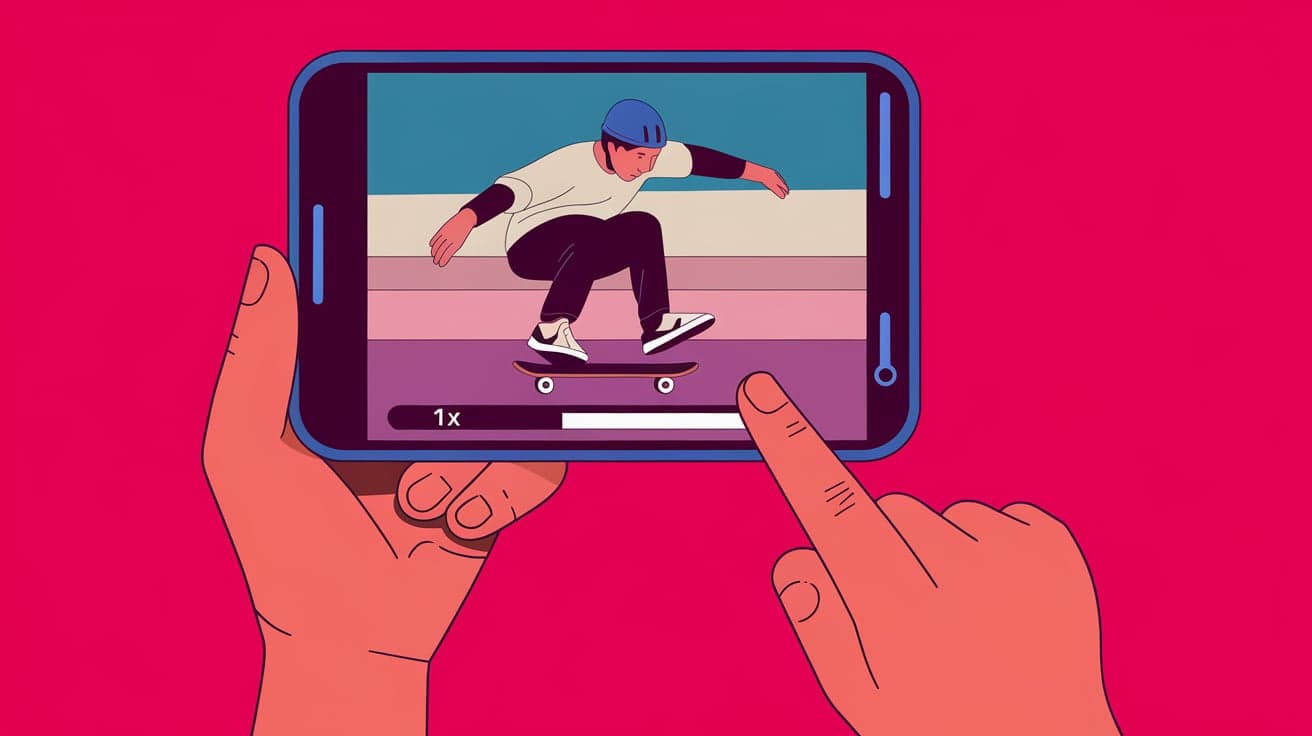
Videos often capture life’s most precious moments, and sometimes you want to slow things down to savor every detail. Whether you're editing a dance video, a sports clip, or just experimenting with your creative side, slowing down a video on your iPhone is super easy and doesn't require fancy tools. Apple has made its devices so user-friendly that even beginners can edit videos with professional-level features.
By the end of this guide, you’ll know all the ways to slow down videos on your iPhone, whether using built-in tools or third-party apps.
Why Slow Down a Video?
Slowing down a video can serve multiple purposes. It’s not just about making your footage look cool; it’s about enhancing its storytelling. For example:
Highlighting Details: Want to show every step of a soccer goal or a gymnast’s flip? A slow-motion effect can highlight intricate movements.
Creative Impact: Slow-motion adds drama or emotion to your video, making it more engaging.
Educational Content: It’s great for tutorials, like cooking or DIY projects, where viewers need extra time to follow steps.
With these benefits in mind, let’s dive into the different ways you can achieve slow-motion effects on your iPhone.
Using the iPhone’s Camera for Slow-Motion Videos
Your iPhone already comes with a built-in slow-motion feature, available in the Camera app. This is the easiest way to shoot videos in slow motion without needing additional software.
Steps to Record in Slow Motion
Open the Camera App: Launch the Camera app from your home screen or control center.
Select “Slo-Mo” Mode: Swipe through the modes at the bottom of the screen until you reach “Slo-Mo.”
Adjust Frame Rate (Optional): Tap the arrow at the top to choose between 120 FPS (frames per second) and 240 FPS. Higher FPS creates smoother slow-motion effects.
Record Your Video: Press the red record button to start capturing your slow-motion footage.
Editing Slow-Motion Clips
Even after recording, you can customize which parts of the video are slowed down:
Open the Video in Photos: Go to the Photos app and find your slow-motion video.
Tap “Edit”: Click the “Edit” option in the top-right corner.
Adjust the Timeline: Drag the sliders to determine which segment of the video should be slowed down.
Save Your Changes: Once happy, tap “Done.”
How to Slow Down Regular Videos Using iMovie
Did you record a video in normal mode but want to add a slow-motion effect later? No problem! Apple's iMovie app, free for iPhone users, is a powerful tool for video editing.
Steps to Slow Down a Video in iMovie
Download and Open iMovie: If you don’t already have it, download iMovie from the App Store and open it.
Start a New Project: Tap “Create Project” and choose “Movie.”
Import Your Video: Select the video you want to edit and tap “Create Movie.”
Access Speed Controls: Tap the video timeline, then the speedometer icon (it looks like a small dial).
Adjust Speed: Drag the slider left to slow down the video. You can adjust it to 50% speed or less, depending on your needs.
Save and Export: Tap “Done” when satisfied, then save your video to the Photos app or share it directly.
Slowing Down Videos in the Photos App
If you don’t want to use iMovie or record in Slo-Mo mode, the Photos app offers basic editing tools to slow down videos.
Steps to Slow Down a Video in the Photos App
Find Your Video: Open the Photos app and locate the video you want to edit.
Tap “Edit”: At the top-right corner, you’ll see an Edit button—tap it.
Use the Playback Speed Option: Depending on your iOS version, you may find a speed adjustment tool directly in the editing timeline.
Save Your Edits: After making changes, tap “Done.”
While the Photos app is less advanced than iMovie, it’s convenient for quick adjustments.
Third-Party Apps for Advanced Slow-Motion Editing
If you want more control or creative effects, third-party apps can take your video editing to the next level. Here are a few popular choices:
1. Slow Fast Motion Video Editor
Features: Adjust speed dynamically, add filters, and export in HD.
Best For: Users looking for advanced yet simple slow-motion effects.
Where to Download: Available on the App Store.
2. InShot
Features: Speed adjustments, trimming, and effects like music overlays.
Best For: Editing entire videos for social media.
3. Videoshop
Features: Precise speed adjustments, reverse effects, and text overlays.
Best For: Adding fun, creative edits to slow-motion clips.
These apps often offer free versions with basic features and premium upgrades for advanced tools.
Common Mistakes to Avoid
Slowing down a video might seem straightforward, but here are some pitfalls to watch out for:
Overdoing It: Not every part of a video needs to be in slow motion. Use the effect sparingly for maximum impact.
Low Resolution: High FPS videos require good lighting and resolution. Check your settings to avoid grainy footage.
Wrong Software: Using overly complex apps for simple edits can waste time. Stick to beginner-friendly tools like iMovie or the Photos app if you’re new.
Conclusion
Slowing down a video on your iPhone is more than just a technical process—it’s a way to enhance storytelling and highlight details that might go unnoticed at normal speed. Whether you use the built-in Camera app, the Photos app, or advanced tools like iMovie and third-party apps, you have plenty of options to achieve the perfect slow-motion effect. With a little practice, your videos can go from ordinary to extraordinary in just a few taps.
FAQs
How can I slow down part of a video on my iPhone?
You can use the Photos app or iMovie. In Photos, tap “Edit,” adjust the timeline sliders, and select the part to slow down. In iMovie, you can split the video and apply slow motion to specific sections.
Can I adjust the speed of a slow-motion video?
Yes, you can. Open the slow-motion video in the Photos app, tap “Edit,” and drag the timeline sliders to change where the slow motion starts and ends.
Do all iPhones support slow-motion recording?
Most iPhones starting from the iPhone 5s support slow-motion recording. Newer models, like the iPhone 12 and 13, offer higher-quality options like 240 FPS.
Are third-party apps better than iMovie for slowing down videos?
It depends on your needs. Third-party apps like Videoshop or InShot offer more creative tools, while iMovie is great for straightforward speed adjustments and basic editing.
Can I slow down a video recorded at normal speed?
Yes, you can. Use apps like iMovie, Videoshop, or Slow Fast Motion Video Editor to add slow-motion effects to regular videos.
Also read -




