
How to Set Up Voicemail on iPhone
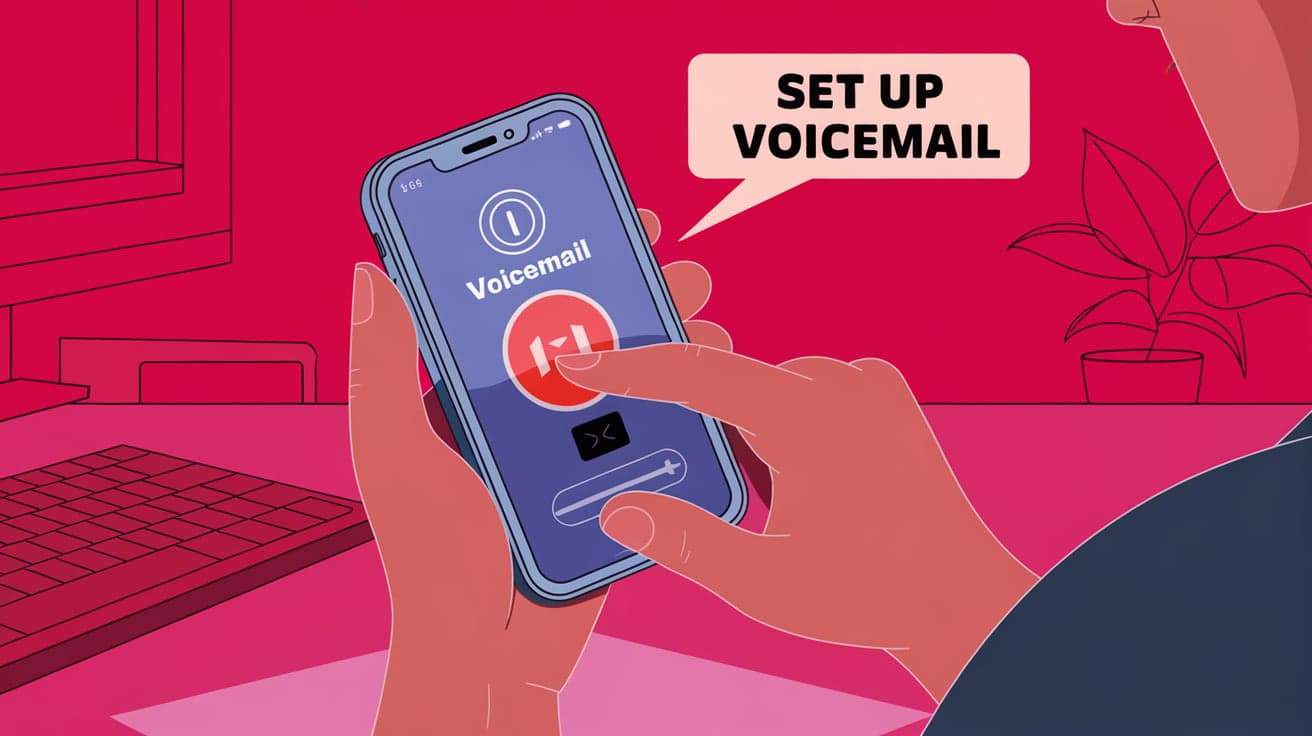
Setting up voicemail on your iPhone ensures you never miss an important message, even when you’re unavailable. Whether it’s for work or personal use, voicemail helps callers leave you messages that you can listen to later. If you’ve just switched to an iPhone or never used voicemail before, setting it up is quick and easy.
This guide will walk you through every step, from setting up basic voicemail to personalizing it with a custom greeting and troubleshooting common issues.
Why Set Up Voicemail on iPhone?
Voicemail is more than just a fallback for missed calls—it’s an essential feature for staying connected. Here’s why setting it up is a smart move:
Never miss important messages: Voicemail stores messages from callers when you can’t answer.
Custom greetings: You can record a personal message for callers, adding a professional or personal touch.
Convenient playback: Visual Voicemail on iPhones makes it easy to see and manage messages in one place.
By setting up voicemail, you ensure that friends, family, or clients can still reach you, even when you’re not available.
How to Set Up Voicemail on iPhone
Setting up voicemail on your iPhone for the first time is simple. Follow these steps:
Step 1: Open the Phone App
Tap the Phone app (the green phone icon) on your home screen.
In the bottom-right corner, tap Voicemail.
Step 2: Set Up Your Voicemail
If it’s your first time, you’ll see a Set Up Now button. Tap it.
Enter a password for your voicemail. Make sure it’s something you can remember but hard for others to guess.
Tap Done to confirm your password.
Step 3: Record a Greeting
Choose between the default greeting or Custom to record your own.
If you select Custom, tap Record to start recording your greeting.
When finished, tap Stop and then Play to listen to your recording.
If you’re satisfied, tap Save.
Your voicemail is now set up and ready to use!
How to Access and Listen to Voicemails
Once voicemail is set up, you can easily access and listen to messages using Visual Voicemail.
Steps to Listen to Voicemail
Open the Phone app and tap Voicemail at the bottom.
You’ll see a list of messages. Tap a message to listen to it.
Use the playback controls to Pause, Rewind, or Delete the message.
Visual Voicemail Features
You can see the caller’s name or number, along with the date and time of the message.
Some iPhones offer transcription, which converts voicemails into text for easy reading.
Visual Voicemail makes it simple to manage messages without calling a voicemail number.
Setting Up Voicemail for Specific Carriers
Sometimes, the setup process may vary slightly depending on your carrier. Here’s what to do for some of the most common carriers:
For AT&T
Tap the Phone app and go to Voicemail.
Follow the setup instructions as prompted.
Call 1 (888) 288-8893 if you encounter issues.
For Verizon
Dial *86 from your iPhone to access voicemail settings.
Set up your password and greeting following the prompts.
If needed, contact Verizon support for assistance.
For T-Mobile
Open the Phone app and select Voicemail.
Tap Set Up Now and follow the instructions.
Call 123 to configure voicemail if Visual Voicemail isn’t working.
These steps should cover most carriers, but if you have a different provider, check their website or contact their support for specific instructions.
How to Change Your Voicemail Greeting
You can change your voicemail greeting anytime if you want to update your message.
Steps to Change Your Greeting
Open the Phone app and tap Voicemail.
Tap Greeting in the top-left corner.
Select Custom to record a new message or choose the default greeting.
Tap Save to apply the changes.
Changing your greeting regularly is helpful if you want to include seasonal messages or update your availability.
Troubleshooting Common Voicemail Issues
If you’re having trouble setting up or using voicemail, here are some common problems and solutions:
1. Can’t Access Voicemail
Ensure your carrier supports Visual Voicemail.
Restart your iPhone and try again.
Contact your carrier to confirm voicemail is activated on your account.
2. Voicemail Not Showing Up
Check your internet connection, as Visual Voicemail requires cellular data or Wi-Fi.
Go to Settings > General > Reset > Reset Network Settings to refresh your network.
3. Forgot Your Voicemail Password
- Reset your voicemail password through your carrier’s support or website.
4. Voicemail Notifications Not Appearing
- Go to Settings > Notifications > Phone and ensure that notifications are enabled.
By following these tips, you can resolve most voicemail-related issues quickly.
Advanced Voicemail Features
Depending on your carrier and iOS version, you may have access to advanced voicemail features:
Voicemail Transcription
iPhones running iOS 10 or later can transcribe voicemails into text.
Open the Voicemail tab, select a message, and the transcription will appear below the playback controls.
Forwarding Voicemails
- Tap the Share icon in a voicemail message to forward it via email, text, or other apps.
Call-Back Option
- In the Voicemail tab, tap the Call Back button to return the call directly from the voicemail message.
These features make managing and sharing your voicemails more convenient.
Conclusion
Setting up voicemail on your iPhone is a quick and easy way to stay connected and never miss important messages. With Visual Voicemail, managing your messages becomes even more convenient, allowing you to listen, read, and respond to calls at your own pace. By following the steps outlined in this guide, you can set up voicemail, customize your greeting, and troubleshoot any issues that arise. Whether you’re using a basic voicemail setup or taking advantage of advanced features like transcription, voicemail is a must-have feature for every iPhone user.
FAQs
How do I set up voicemail on an iPhone for the first time?
Open the Phone app, go to Voicemail, tap Set Up Now, and follow the prompts to create a password and record a greeting.
Why can’t I see voicemails on my iPhone?
Ensure that Visual Voicemail is supported by your carrier and that your internet connection is active. Restart your phone if needed.
How do I change my voicemail password?
Go to Settings > Phone > Change Voicemail Password and follow the instructions.
Can I save voicemails to my iPhone?
Yes, tap the Share icon on a voicemail message to save it to the Files app, email, or another storage location.
Is voicemail free on iPhone?
While voicemail is free on most plans, some carriers may charge for Visual Voicemail or additional features. Check with your carrier for details.
Also read -




