
How to Send Audio Message on iPhone
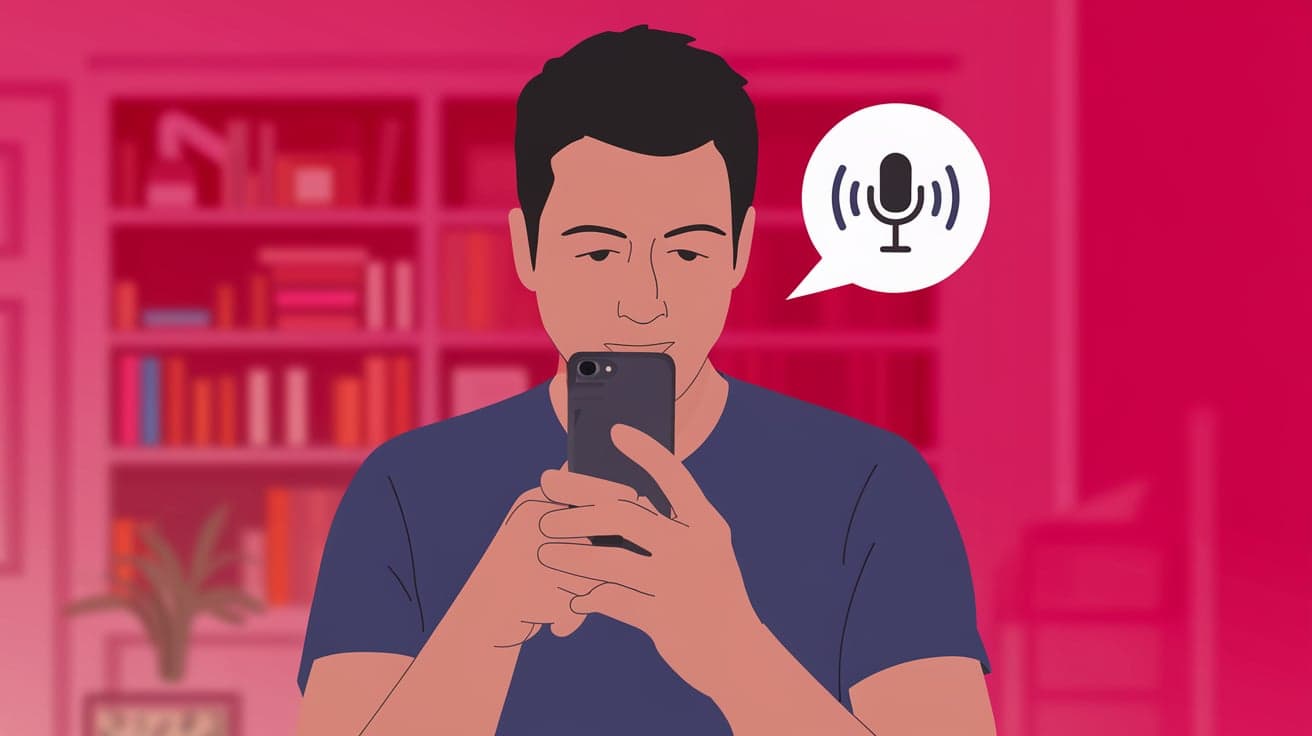
Sometimes typing out a message just doesn’t cut it. Maybe you want to share something emotional, funny, or personal that words on a screen can’t fully express. This is where audio messages come in handy. Your iPhone makes it super easy to send voice messages, whether you're explaining something quickly, sharing a heartfelt note, or simply saving time.
If you’ve never tried sending an audio message, don’t worry—I’ll walk you through every step. By the end of this guide, you’ll feel confident using this feature like a pro.
Why Send Audio Messages on iPhone?
Audio messages aren’t just for fun—they’re practical, too. Here’s why you might choose to send one:
Express Emotion: Sometimes tone and emotion don’t come through in text. A voice message can make your feelings crystal clear.
Save Time: Instead of typing out a long message, speak your thoughts in seconds.
Better Understanding: Whether it’s detailed instructions or storytelling, your voice can explain things more effectively.
Stay Hands-Free: If you’re busy cooking or driving, recording a message is easier than typing.
Now that you know the benefits, let’s move on to how it works.
Steps to Send an Audio Message Using iMessage
Sending an audio message through iMessage is simple. Follow these steps:
1. Open the Messages App
Launch the Messages app on your iPhone.
Open an existing conversation or start a new one by tapping the compose icon in the top-right corner.
The Messages app is your go-to place for all things text and audio.
2. Locate the Audio Icon
Inside the message field, look for the microphone icon to the right of the text box.
If you don’t see it, make sure your keyboard is active and you’re in an iMessage chat (blue bubbles indicate iMessage, while green bubbles mean SMS).
The microphone icon is key to starting your audio message journey.
3. Record Your Audio Message
Tap and hold the microphone icon to start recording your message.
Speak clearly and release the icon when you’re done.
If you need to cancel the recording, swipe your finger left before releasing the icon.
4. Preview and Send
After recording, you can choose to listen to your message before sending it. Tap the play button to preview.
If everything sounds good, hit the send button (upward arrow) to share your message.
To delete and re-record, tap the X icon before sending.
This quick review step ensures you’re happy with what you’re sending.
How to Send Audio Messages on WhatsApp or Other Apps
Besides iMessage, you can send audio messages through apps like WhatsApp, Telegram, or Facebook Messenger. Here’s how it works in WhatsApp:
1. Open a Chat
Launch WhatsApp and open a chat.
Tap the microphone icon next to the text input box.
2. Record the Message
Press and hold the microphone icon to record. Speak into the microphone clearly.
Release the icon when finished to send the message automatically.
3. Use the Lock Feature
If you’re sending a long audio message, swipe up while holding the icon to lock the recording. This way, you can talk hands-free.
Tap the send button when you’re done, or hit cancel if you want to delete the recording.
These steps apply to most messaging apps, but the layout might vary slightly depending on the app.
Tips for Perfect Audio Messages
Sending audio messages might seem straightforward, but here are some tips to make them even better:
Speak Clearly
Make sure your voice is clear, and reduce background noise to help the recipient understand you better.Keep It Short
While it’s tempting to ramble, try to keep your message concise and to the point.Use Headphones
If you’re in a noisy environment, recording with headphones can help improve audio quality.Double-Check Before Sending
Preview your message, especially if it’s important or emotional.Know When to Use It
Audio messages are great for personal or urgent communication. For formal settings, stick to written messages.
Troubleshooting: Common Issues with Audio Messages
If you run into problems sending audio messages, here’s how to fix them:
1. Microphone Not Working
Check if the microphone is enabled for your messaging app. Go to Settings > Privacy > Microphone and toggle the switch for the app.
Restart your iPhone if the issue persists.
2. Audio Message Not Sending
Ensure you’re connected to WiFi or cellular data.
For iMessage, make sure your recipient is also using an iPhone, iPad, or Mac. Green bubbles (SMS) don’t support audio messages.
3. Poor Audio Quality
Move to a quieter environment and hold your phone closer to your mouth.
Clean your iPhone’s microphone to remove dust or debris.
How to Save Audio Messages
By default, audio messages in iMessage expire after 2 minutes unless you save them. To keep a message:
After listening, tap the Keep option below the message.
To save all audio messages automatically, go to Settings > Messages > Expire under the Audio Messages section and select Never.
For WhatsApp, audio messages are saved in the chat unless manually deleted.
Benefits of Audio Messages Over Text or Calls
Still wondering why you should use audio messages? Here are some clear advantages:
More Personal: Hearing someone’s voice creates a deeper connection than reading text.
No Need for Real-Time Interaction: Unlike calls, audio messages let the recipient listen and respond at their convenience.
Faster Than Texting: Speaking your message takes less time than typing it out.
Conclusion
Sending audio messages on your iPhone is a quick, easy, and personal way to communicate. Whether you’re using iMessage, WhatsApp, or another app, the process is straightforward once you know where to find the microphone icon and how to use it. From saving time to adding a personal touch, audio messages can enhance your conversations in ways text can’t.
Now that you know how to send an audio message, give it a try next time you want to share something unique or heartfelt. It might just become your new favorite way to communicate!
FAQs
How do I send an audio message without holding the microphone icon?
To send a longer audio message without holding the icon, swipe up while recording to lock the microphone. This works in apps like WhatsApp but isn’t available in iMessage.
Can I send audio messages to non-iPhone users?
No, iMessage audio messages work only between Apple devices. For non-iPhone users, use apps like WhatsApp or Telegram.
Why do my iMessage audio messages disappear after two minutes?
By default, audio messages in iMessage expire after 2 minutes to save space. You can change this setting in Settings > Messages > Expire under Audio Messages.
How can I improve the sound quality of my audio messages?
Record in a quiet environment, speak clearly, and use headphones with a microphone for better audio quality.
Are audio messages secure?
Yes, audio messages sent via iMessage are encrypted, ensuring privacy. For third-party apps, check their privacy policies to understand their encryption standards.
Also read -




