
How to Scan a QR Code on iPhone
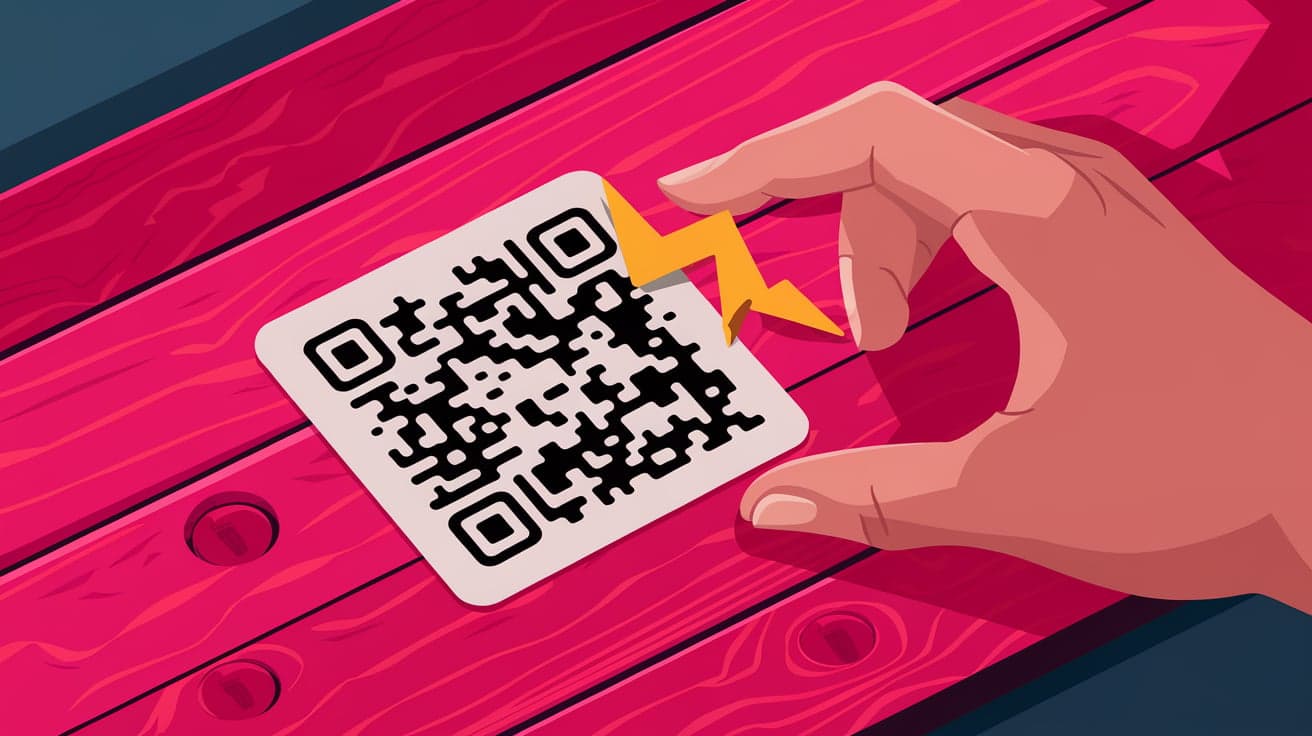
QR codes have become a part of everyday life. From restaurant menus to payment systems, scanning a QR code with your iPhone makes accessing information or completing tasks easier and faster. The good news is that every iPhone comes with a built-in QR code scanner, so you don’t need to download any extra apps.
In this guide, I’ll walk you through the different ways to scan a QR code on your iPhone, give you troubleshooting tips if it doesn’t work, and share a few bonus tricks for using QR codes like a pro.
What Is a QR Code and Why Would You Scan One?
A QR (Quick Response) code is a type of barcode that stores information. When scanned, it can direct you to a website, share a Wi-Fi password, open an app, or even make a payment. Scanning a QR code is much faster than typing a web address or manually entering information, making it a convenient option for both businesses and individuals.
How to Scan a QR Code Using the Camera App
The easiest way to scan a QR code on your iPhone is by using the built-in Camera app. This method is quick and requires no additional setup.
Steps to Scan a QR Code
Open the Camera App:
- Tap the Camera app on your home screen or swipe left from the lock screen.
Point the Camera at the QR Code:
- Hold your iPhone steady and make sure the QR code is fully visible in the camera frame.
Wait for the Notification Banner:
- A banner will appear at the top of your screen with the QR code's action (e.g., "Open website").
Tap the Banner:
- Tap the banner to follow the link, join a network, or complete the action associated with the QR code.
Tips for Better Scanning
Ensure the QR code is well-lit.
Hold your phone steady to help the camera focus.
Keep the QR code within the highlighted square on your screen.
Using the Control Center QR Code Scanner
If you prefer a more direct way to scan QR codes, you can use the QR Code Scanner feature in the Control Center.
Enable QR Code Scanner in Control Center
Go to Settings:
- Open the Settings app and tap Control Center.
Add the Scanner:
- Scroll down to find Code Scanner and tap the green plus (+) button to add it to your Control Center.
How to Use the Control Center Scanner
Swipe down from the top-right corner of the screen (or swipe up from the bottom if you have an older iPhone).
Tap the Code Scanner icon.
Point your camera at the QR code. The scanner will immediately process the code and take you to the associated link or action.
This feature is especially helpful if you scan QR codes frequently.
How to Scan a QR Code in Photos
Did you know you can scan a QR code from an image saved in your Photos app? This is useful if someone shares a QR code with you as a screenshot or photo.
Steps to Scan a QR Code in Photos
Open the Photos app on your iPhone.
Select the image with the QR code.
Tap and hold the QR code in the photo. A pop-up will appear with the QR code's action.
Tap the suggested action (e.g., "Open Link").
Apple’s iOS makes it easy to scan QR codes directly from saved images, so you don’t always need to point your camera at a physical code.
What to Do If QR Code Scanning Doesn’t Work
Sometimes, scanning a QR code might not work as expected. Here are some common issues and how to fix them:
1. Check Camera Settings
Go to Settings > Camera.
Ensure the Scan QR Codes toggle is enabled.
2. Improve Lighting
Poor lighting can make it harder for your iPhone to recognize the code. Try moving to a brighter area or using your iPhone’s flashlight by tapping the lightning bolt icon in the Camera app.
3. Clean Your Camera Lens
A dirty or smudged lens can affect the camera’s ability to focus on the QR code. Wipe the lens with a soft, lint-free cloth.
4. Zoom In or Out
If the QR code is too small or far away, try zooming in or moving closer for better visibility.
5. Update Your iOS
Older iOS versions might have compatibility issues. Make sure your iPhone is updated by going to Settings > General > Software Update.
Bonus: Creating Your Own QR Codes on iPhone
You can create your own QR codes for free using apps or websites. This is great for sharing Wi-Fi passwords, website links, or contact information.
Steps to Create a QR Code
Download a free QR code generator app like QR Code Reader or use a website like qr-code-generator.com.
Enter the information you want to share (e.g., a URL or contact details).
Save or share the generated QR code.
You can even add QR codes to printed materials or digital files for easy sharing.
Benefits of Using QR Codes on iPhone
QR codes simplify many tasks, and your iPhone’s built-in scanner makes it easy to take advantage of them. Here are some benefits:
Quick access to information: Scan codes to visit websites, download apps, or read product details instantly.
Seamless payments: Many payment systems now use QR codes for secure, contactless transactions.
Effortless sharing: Share Wi-Fi networks or contact info without typing anything.
Using QR codes saves time and makes your interactions more efficient.
Conclusion
Scanning a QR code on your iPhone is a simple yet powerful tool for accessing information, completing payments, or sharing details. Whether you use the Camera app, Control Center, or scan a code from a saved image, Apple’s iPhones make it effortless. If you encounter any issues, troubleshooting steps like enabling the QR code scanner in Settings or cleaning your camera lens can quickly resolve them.
Once you’re comfortable scanning QR codes, you’ll wonder how you managed without this feature. It’s a fast, secure, and modern way to interact with the digital world around you.
FAQs
Can all iPhones scan QR codes?
Yes, all iPhones running iOS 11 or later have a built-in QR code scanner in the Camera app.
Do I need an app to scan QR codes on my iPhone?
No, you don’t need a separate app. The Camera app or the QR Code Scanner in the Control Center can handle scanning.
How do I scan a QR code from a screenshot?
Open the screenshot in the Photos app, tap and hold the QR code, and select the suggested action.
Why won’t my iPhone scan a QR code?
Make sure the Scan QR Codes option is enabled in Settings > Camera. Also, check for good lighting and a clean camera lens.
Can I create QR codes on my iPhone?
Yes, you can create QR codes using apps like QR Code Reader or online tools like qr-code-generator.com. Save the code to your Photos or share it directly.
Also read -




