
How to Restart iPhone 14
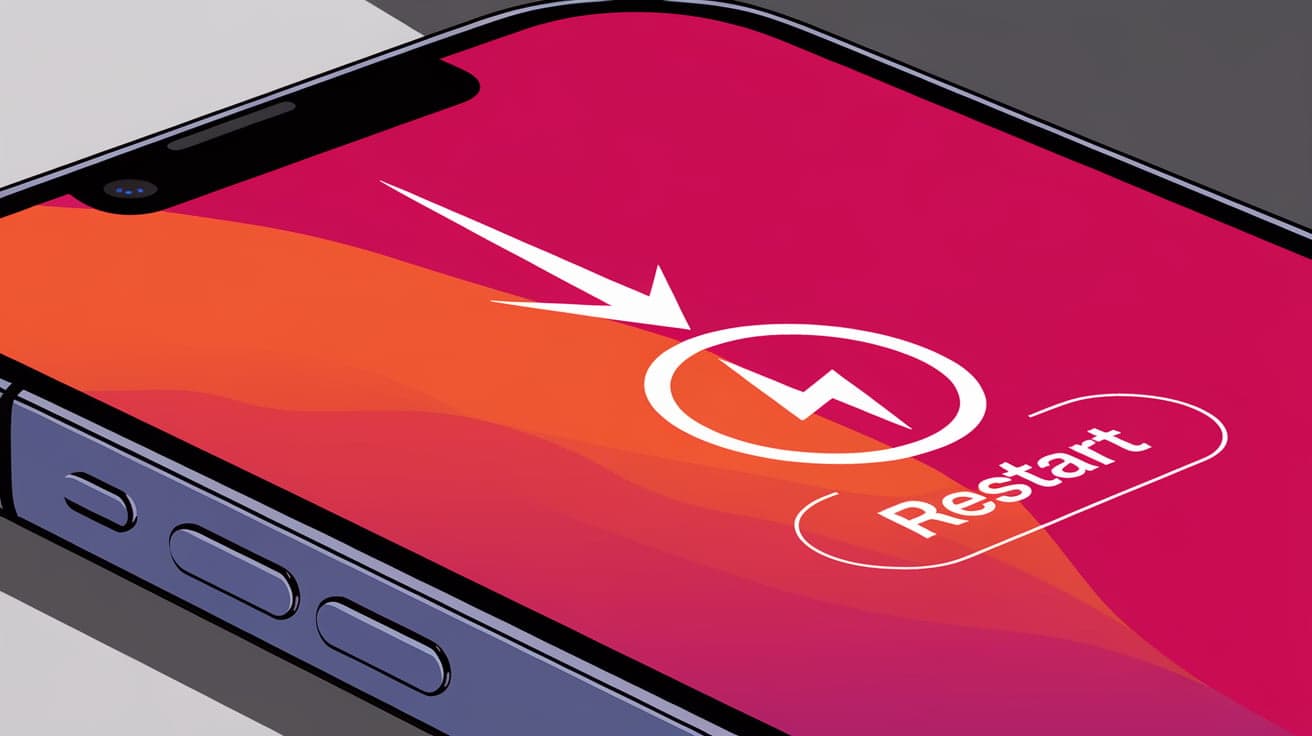
Your iPhone 14 is designed to run smoothly, but even the best devices need a restart occasionally. Restarting your phone can help fix small issues like apps freezing, slow performance, or connectivity problems. While the process might seem simple, Apple’s newer designs have changed the way you restart your device compared to older models.
If you’re new to the iPhone 14 or just need a quick refresher, this guide will walk you through all the steps to restart your phone, including regular restarts, force restarts, and other troubleshooting tips.
Why Restarting Your iPhone 14 Matters
Restarting your iPhone isn’t just about turning it off and on—it’s a way to refresh its system. Here are some common reasons why you might want to restart your device:
Improve performance: Restarting clears temporary files and processes that may slow your phone down.
Fix glitches: Small software bugs or app crashes can often be resolved with a restart.
Reconnect to networks: A restart can fix Wi-Fi or Bluetooth connection problems.
Battery optimization: Restarting your phone can help recalibrate battery performance after updates.
It’s a quick solution that often resolves minor issues without any advanced troubleshooting.
How to Perform a Regular Restart on iPhone 14
A regular restart is the simplest way to refresh your iPhone. It’s easy to do and safe for your data.
Steps to Restart Your iPhone 14
Press and Hold Buttons:
- Press and hold the Side button and either the Volume Up or Volume Down button at the same time.
Wait for the Power Off Slider:
- Keep holding the buttons until you see the slide to power off option appear on the screen.
Slide to Power Off:
- Swipe the slider from left to right to turn off your iPhone.
Turn It Back On:
- After the screen goes completely black, press and hold the Side button again until the Apple logo appears.
Your iPhone will restart, and you can continue using it as usual.
How to Force Restart iPhone 14
If your iPhone 14 is unresponsive, a regular restart may not work. In this case, you’ll need to perform a force restart. Don’t worry—this won’t delete any data or files on your phone.
Steps to Force Restart Your iPhone 14
Quickly Press Volume Up:
- Press and release the Volume Up button.
Quickly Press Volume Down:
- Press and release the Volume Down button.
Hold the Side Button:
- Press and hold the Side button until the Apple logo appears on the screen.
This method forces your iPhone to restart immediately, making it useful for dealing with frozen apps, black screens, or other major issues.
How to Restart iPhone 14 Through Settings
If your phone’s physical buttons are not working or you prefer using the touchscreen, you can restart your iPhone through the Settings app.
Steps to Restart Using Settings
Open the Settings app on your iPhone.
Go to General.
Scroll down and select Shut Down.
Swipe the slide to power off slider to turn off your phone.
Turn your iPhone back on by holding the Side button until the Apple logo appears.
This method is especially helpful if your buttons are damaged or not responding.
What to Do If Restarting Doesn’t Fix the Issue
If restarting your iPhone 14 doesn’t resolve the problem you’re experiencing, try these additional troubleshooting steps:
1. Update Your Software
Make sure your iPhone is running the latest version of iOS. Updates often include bug fixes and performance improvements.
Go to Settings > General > Software Update.
If an update is available, tap Download and Install.
2. Check for Problematic Apps
If an app keeps freezing or crashing, try updating or reinstalling it:
Open the App Store and check for updates.
If the app is still causing problems, delete it and reinstall it from the App Store.
3. Reset Network Settings
If you’re having connectivity issues, resetting your network settings can help:
Go to Settings > General > Transfer or Reset iPhone > Reset.
Select Reset Network Settings.
4. Contact Apple Support
If nothing works, your iPhone may have a hardware issue. Reach out to Apple Support for further assistance or visit an Apple Store.
Tips to Keep Your iPhone 14 Running Smoothly
Restarting your iPhone 14 is a quick fix, but you can take a few extra steps to ensure it performs well in the long run:
Close Unused Apps:
- Double-tap the Home button (on older models) or swipe up from the bottom and hold (on iPhone 14) to view open apps. Swipe up to close apps you’re not using.
Clear Cache:
- Clearing browser data in Settings > Safari > Clear History and Website Data can help improve performance.
Free Up Storage:
- Delete unnecessary files, photos, and apps to keep your phone running efficiently.
Restart Regularly:
- Restart your iPhone at least once a week to clear temporary files and refresh its memory.
Conclusion
Restarting your iPhone 14 is one of the easiest and most effective ways to fix common problems, refresh your phone’s system, and improve its performance. Whether you’re doing a regular restart, force restarting, or using the Settings app, the process is straightforward and safe. If restarting doesn’t solve your issue, additional troubleshooting steps like updating your software or resetting network settings can help.
By following the steps in this guide, you’ll have all the tools you need to restart your iPhone and keep it running smoothly. Don’t forget to restart your device regularly as part of your routine maintenance—it’s a simple habit that can make a big difference.
FAQs
How do I restart my iPhone 14 if the screen is frozen?
If your screen is frozen, perform a force restart by quickly pressing Volume Up, then Volume Down, and holding the Side button until the Apple logo appears.
Will restarting my iPhone delete my data?
No, restarting or force restarting your iPhone 14 will not delete any data or apps. It simply refreshes the system.
Can I restart my iPhone without using the buttons?
Yes, you can restart your iPhone through the Settings > General > Shut Down option. This is useful if your buttons aren’t working.
Why isn’t my iPhone restarting?
If your iPhone doesn’t respond to restart attempts, it might have a deeper software or hardware issue. Try a force restart or contact Apple Support for help.
How often should I restart my iPhone 14?
Restarting your iPhone once a week is a good practice to keep it running smoothly and prevent temporary glitches.
Also read -




