
How to Remove the Blue Box Outline on iPhone
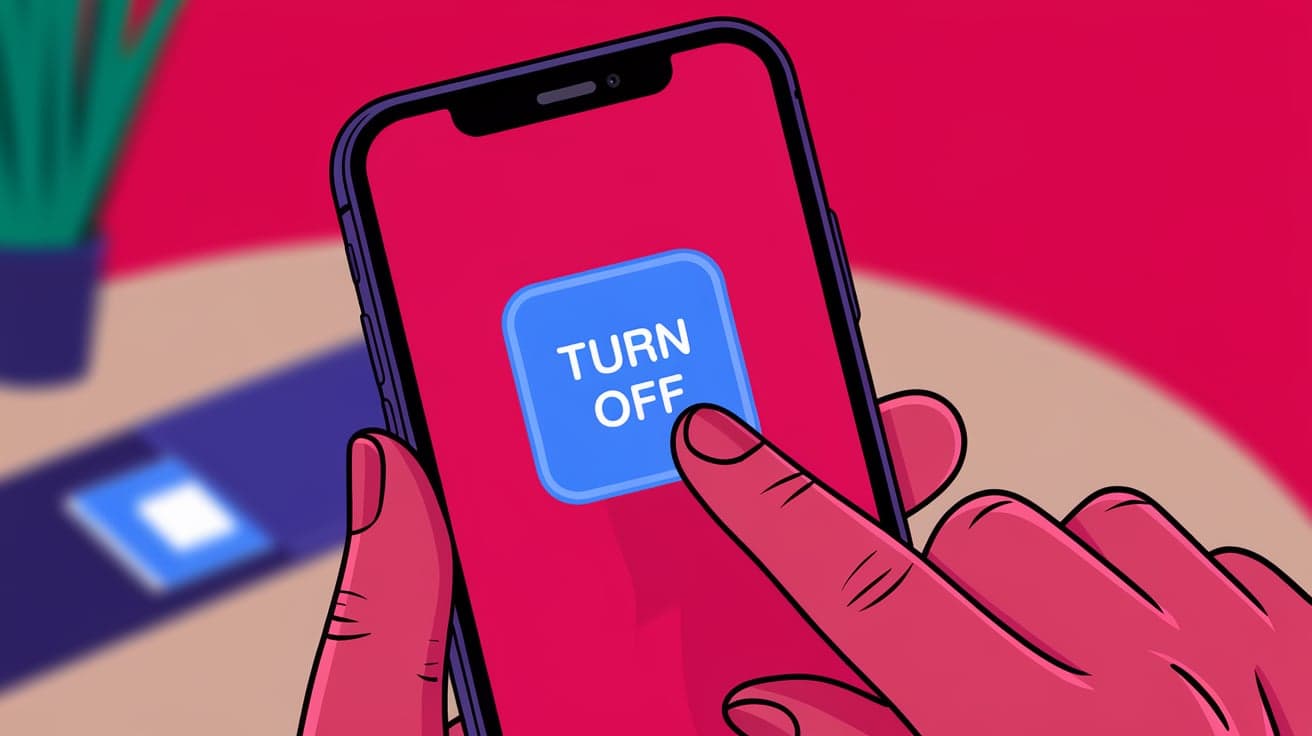
If a blue box keeps moving around on your iPhone screen, highlighting items and making it hard to use your device, you’re not alone. This feature is part of the Switch Control or VoiceOver accessibility settings, designed to help people with disabilities navigate their iPhone.
However, if you turned it on accidentally, it can feel confusing and frustrating. Luckily, turning it off is simple once you know where to look. This guide will walk you through why the blue box appears and how to turn it off quickly and easily.
What Causes the Blue Box on Your iPhone?
The blue box you see is likely from Switch Control or VoiceOver, both of which are part of the iPhone’s Accessibility settings. Here’s how each works:
Switch Control: This setting lets users navigate the iPhone using external devices or switches. The blue box highlights items on the screen that can be selected using these controls.
VoiceOver: VoiceOver is an accessibility feature that reads out text and helps people with visual impairments use their iPhones. The blue box highlights the currently selected item.
While these features are incredibly useful for those who need them, they can interfere with regular usage if turned on accidentally.
How to Turn Off the Blue Box on iPhone
To disable the blue box, you need to turn off either Switch Control or VoiceOver, depending on which one is causing the issue. Here’s how to do it:
Method 1: Turn Off Switch Control
Open the Settings app on your iPhone.
Scroll down and tap Accessibility.
Under the Physical and Motor section, select Switch Control.
Toggle the Switch Control switch to Off.
Once you turn off Switch Control, the blue box should disappear, and your iPhone will function normally.
Method 2: Turn Off VoiceOver
Open the Settings app.
Go to Accessibility.
Under the Vision section, tap VoiceOver.
Toggle the VoiceOver switch to Off.
Disabling VoiceOver will stop the blue box from moving around and restore standard navigation.
Using Siri to Turn Off the Blue Box
If navigating your iPhone is too difficult with the blue box active, you can use Siri to turn off VoiceOver or Switch Control:
Activate Siri by saying “Hey Siri” or holding the Side button (or Home button on older iPhones).
Say “Turn off VoiceOver” or “Turn off Switch Control”.
Siri will disable the feature, and the blue box will disappear.
This method is quick and doesn’t require going through the settings manually.
Restarting Your iPhone
If the blue box remains after trying the above methods, restarting your iPhone might help:
Press and hold the Side button (or the Top button on older models) along with the Volume Down button until the power-off slider appears.
Drag the slider to turn off your iPhone.
Wait a few seconds, then press and hold the Side button to turn it back on.
Sometimes, a simple restart can resolve unexpected glitches in accessibility settings.
Checking for Accessibility Shortcuts
If the blue box keeps coming back, it might be linked to an Accessibility Shortcut. Here’s how to check and adjust these settings:
Open the Settings app.
Tap Accessibility.
Scroll down and select Accessibility Shortcut.
Deselect VoiceOver or Switch Control if they’re listed.
This prevents you from accidentally enabling these features by triple-clicking the Side or Home button.
Preventing the Blue Box from Activating Again
To avoid the blue box appearing in the future, you can disable shortcuts or customize your settings:
Remove Accessibility Features from Shortcuts: As mentioned above, go to Settings > Accessibility Shortcut and uncheck VoiceOver or Switch Control.
Customize Siri Commands: Avoid using phrases that might accidentally activate VoiceOver or Switch Control.
Set a Passcode for Changes: If someone else frequently uses your iPhone, consider adding restrictions to prevent changes to accessibility settings.
Why Accessibility Features Are Important
While the blue box might be frustrating if turned on accidentally, it’s a helpful feature for users with specific needs. VoiceOver is invaluable for visually impaired users, providing spoken feedback to navigate the iPhone, while Switch Control allows users with limited mobility to control their device using switches or other adaptive tools. These settings make iPhones accessible to a wide range of users, showcasing Apple’s commitment to inclusivity.
Conclusion
The blue box on your iPhone is part of the Switch Control or VoiceOver accessibility features. If it’s causing you trouble, turning it off is straightforward. Use the Settings app to disable these features, or ask Siri for help if navigating is too challenging. Additionally, consider removing these features from the Accessibility Shortcut to avoid accidentally activating them in the future. With these tips, you can take control of your iPhone and stop the blue box from interfering with your daily use.
FAQs
What causes the blue box to appear on my iPhone screen?
The blue box is caused by either Switch Control or VoiceOver, both of which are accessibility features designed to help users with specific needs.
How can I quickly turn off the blue box?
You can use Siri to say “Turn off VoiceOver” or “Turn off Switch Control,” or manually disable these features in Settings > Accessibility.
Why does the blue box keep coming back after I turn it off?
The blue box may be linked to the Accessibility Shortcut. Go to Settings > Accessibility Shortcut and remove VoiceOver or Switch Control to prevent accidental activation.
Can I completely remove VoiceOver and Switch Control from my iPhone?
You can’t remove these features since they are built into iOS, but you can disable them and prevent them from activating accidentally by adjusting your settings.
What should I do if the blue box doesn’t disappear after turning off accessibility features?
Try restarting your iPhone. If the problem persists, check for updates under Settings > General > Software Update, as a software bug might be causing the issue.
Also read -




