
How to Quickly Hard Reset Your iPhone 11
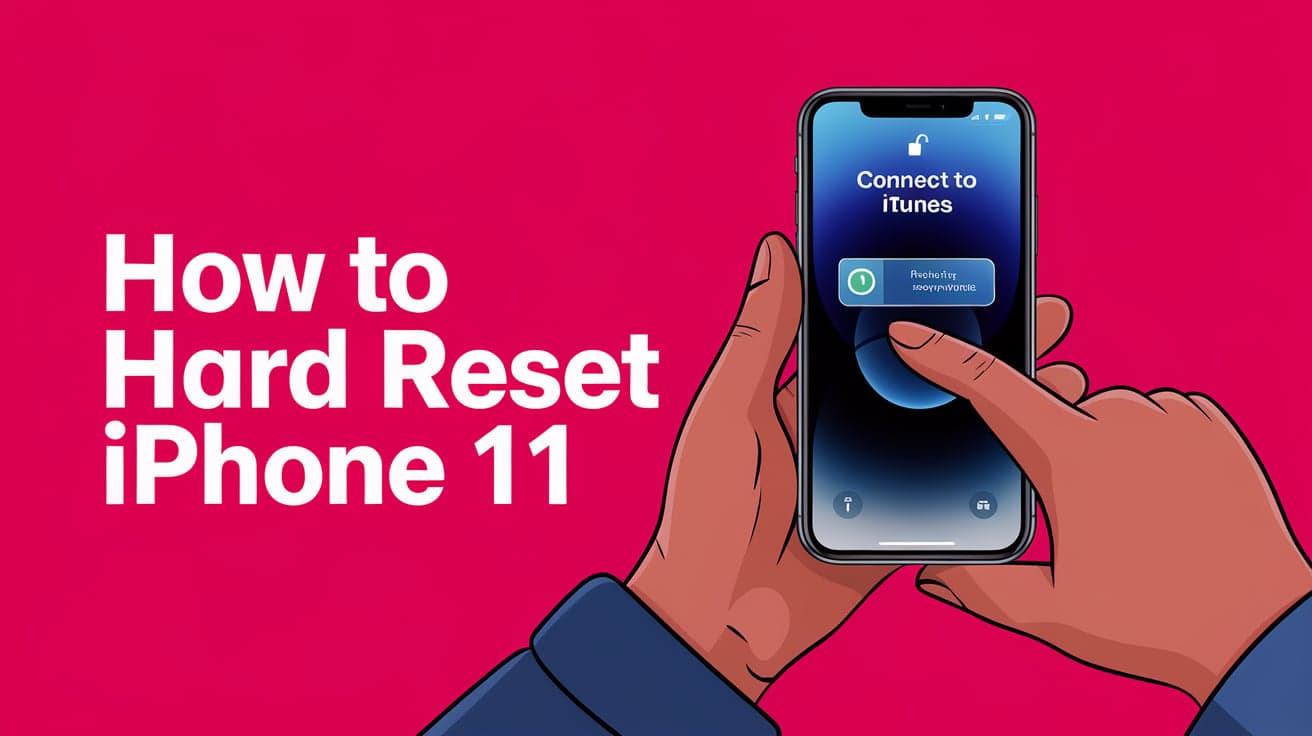
Your iPhone 11 is a powerful and reliable device, but like all technology, it can occasionally freeze, lag, or stop responding. In these cases, performing a hard reset can often fix the problem. A hard reset, also called a force restart, is a quick way to restart your iPhone when it’s unresponsive, without erasing your data or settings.
In this guide, I’ll explain everything you need to know about hard resetting an iPhone 11. I’ll walk you through the exact steps, when to use this feature, and tips for keeping your phone running smoothly. Whether you’re troubleshooting a frozen app or trying to resolve a software glitch, this guide will help you get your iPhone 11 back to normal.
What Is a Hard Reset?
A hard reset forces your iPhone to restart when it’s frozen or unresponsive. It interrupts all ongoing processes and shuts down the device, clearing temporary glitches in the software. Unlike a factory reset, a hard reset does not erase your personal data or settings. It’s a safe way to fix minor issues without losing anything important.
When Should You Hard Reset Your iPhone 11?
A hard reset is useful in several scenarios, including:
Unresponsive Screen: If your iPhone’s screen freezes and doesn’t respond to taps or swipes.
Stuck on Apple Logo: When your device gets stuck during boot-up.
Apps Crashing: If apps repeatedly crash or fail to load.
Connectivity Issues: When your phone struggles to connect to Wi-Fi, Bluetooth, or cellular networks.
Random Glitches: If your iPhone behaves strangely, like restarting on its own or showing error messages.
Now that you know when to use it, let’s move on to how to perform a hard reset.
How to Hard Reset iPhone 11
The process to hard reset an iPhone 11 involves a sequence of button presses. Here’s how to do it step by step.
Steps to Hard Reset:
Press and Quickly Release the Volume Up Button:
- Locate the Volume Up button on the left side of your iPhone. Press it briefly and let go.
Press and Quickly Release the Volume Down Button:
- Next, press the Volume Down button just below the Volume Up button and release it.
Press and Hold the Side Button:
- Now, press and hold the Side Button (on the right side of your iPhone). Keep holding it until you see the Apple logo on the screen.
Release the Side Button:
- Once the Apple logo appears, release the Side Button. Your iPhone will restart.
It may take a few seconds for the Apple logo to appear, so don’t let go of the Side Button too quickly.
What Happens During a Hard Reset?
When you perform a hard reset, your iPhone forcefully shuts down all running processes and restarts the system. This clears temporary software glitches or errors, allowing your device to function normally again. It’s like a quick refresh for your iPhone’s software.
Why Hard Resetting Is Safe
A hard reset is a safe troubleshooting method because it doesn’t delete any of your personal data, apps, photos, or settings. It’s simply a way to force your phone to restart when it’s not responding. Unlike a factory reset, which erases everything and returns your device to its original state, a hard reset is non-destructive.
What to Do If a Hard Reset Doesn’t Work
If your iPhone 11 remains unresponsive after a hard reset, try these additional troubleshooting steps:
Check for Software Updates
Connect your iPhone to a stable Wi-Fi network.
Go to Settings > General > Software Update.
If an update is available, download and install it. Updates often fix bugs and improve system stability.
Restore Using Recovery Mode
Connect your iPhone to a computer using a Lightning cable.
Open Finder (Mac) or iTunes (Windows).
Put your iPhone in recovery mode by performing the hard reset steps but holding the Side Button until the recovery mode screen appears.
Follow the on-screen instructions to restore your device.
Contact Apple Support
If none of these solutions work, it might be a hardware issue. Visit an Apple Store or contact Apple Support for professional assistance.
Tips for Maintaining Your iPhone 11’s Performance
While hard resets are useful, regular maintenance can reduce the need for them. Here are some tips to keep your iPhone running smoothly:
Keep Software Updated: Always install the latest iOS updates to fix bugs and improve performance.
Free Up Storage: Delete unused apps, old photos, and large files to prevent your phone from slowing down.
Close Background Apps: Swipe up from the bottom and close apps you’re not using.
Restart Periodically: Turn off your iPhone once in a while to clear temporary files and refresh the system.
Conclusion
Performing a hard reset on your iPhone 11 is a simple and effective way to fix minor issues like freezing, crashing apps, or unresponsive screens. By following the steps in this guide, you can quickly restart your phone and get it back to working condition without losing any data.
If a hard reset doesn’t solve the problem, try additional troubleshooting steps like updating your software or restoring your device using recovery mode. And remember, regular maintenance is key to keeping your iPhone 11 running smoothly.
FAQs
Does a hard reset delete everything on my iPhone 11?
No, a hard reset doesn’t delete any data. It simply forces your iPhone to restart and clears temporary software glitches.
How often should I hard reset my iPhone 11?
You only need to hard reset your iPhone when it’s unresponsive or behaving abnormally. It’s not necessary as part of regular maintenance.
Why won’t my iPhone 11 respond to a hard reset?
If a hard reset doesn’t work, your iPhone might have a deeper software or hardware issue. Try restoring it using recovery mode or contacting Apple Support.
Is hard resetting the same as factory resetting?
No, a hard reset restarts your iPhone without affecting your data, while a factory reset erases everything and returns the device to its original settings.
Can I hard reset my iPhone 11 if the screen is frozen?
Yes, a hard reset is specifically designed for situations like frozen screens. Follow the steps to force your iPhone to restart.
Also read -




