
How to Make Stickers on iPhone: A Complete Guide
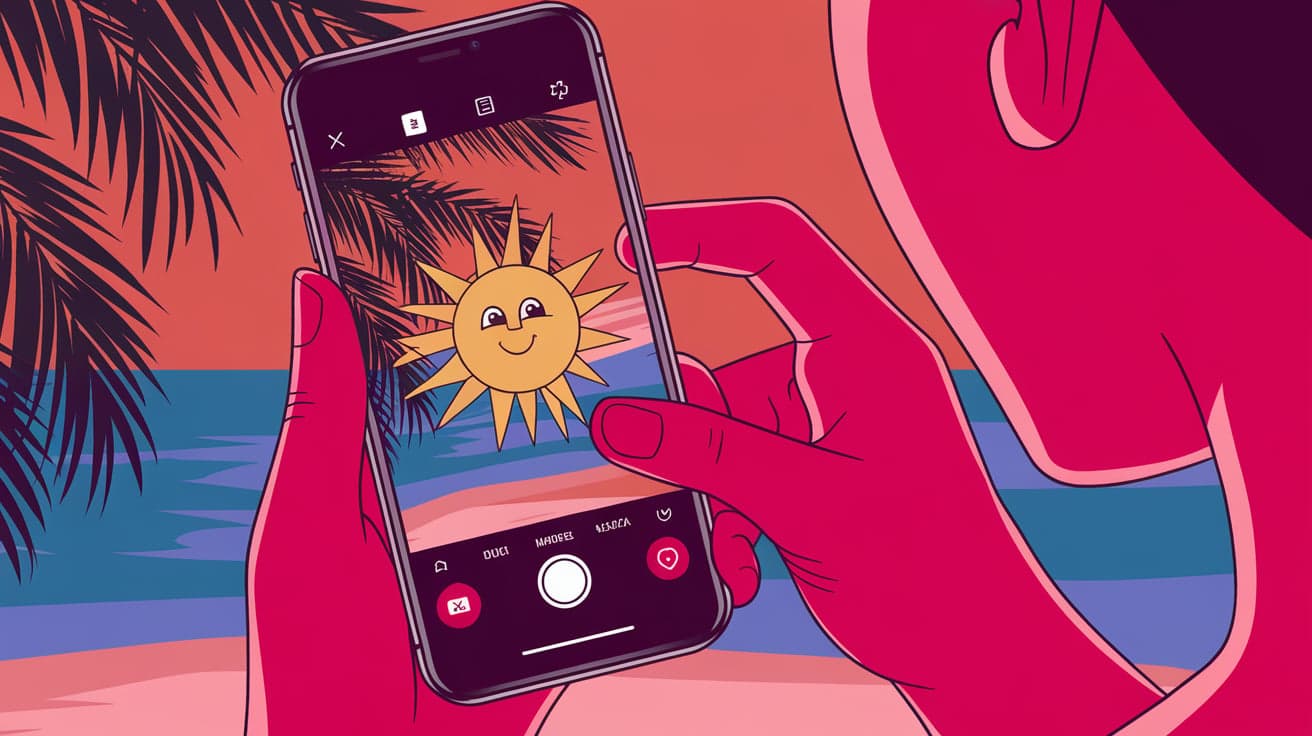
Stickers have become an essential part of our conversations, adding a touch of fun and creativity to messages. The good news is, your iPhone makes it easy to create your own custom stickers, whether you want to use your favorite photos, doodles, or designs. Making stickers can be a fun activity and is perfect for creating unique content to share with friends and family.
In this guide, I’ll show you how to make stickers on your iPhone using built-in tools and apps. By the end, you’ll be able to create, save, and share stickers effortlessly.
Why Make Stickers on Your iPhone?
Creating custom stickers on your iPhone has many benefits:
Personalization: Add a personal touch to your conversations by using your own designs or photos.
Fun and Creative: Let your creativity shine by turning your favorite moments or doodles into stickers.
Easy Sharing: Share unique stickers with friends or use them in group chats.
Great for Branding: Custom stickers can also be useful for promoting a personal brand or business.
Method 1: Use the Freeform App for Doodles
The Freeform app, available on newer iPhone models, is perfect for drawing and creating your own stickers.
Steps to Make Stickers in Freeform:
Open the Freeform App:
- Launch the Freeform app from your home screen.
Create a New Drawing:
Tap the + button to start a new canvas.
Use the drawing tools at the bottom of the screen to doodle your sticker design.
Export the Drawing:
Once you’re happy with your design, tap the share icon and save it as an image.
You can then use apps like Messages or third-party tools to turn the image into a sticker.
This method is ideal for simple, hand-drawn designs.
Method 2: Use the Photos App to Cut Out Shapes
The Photos app lets you isolate objects in your pictures, which is perfect for turning a favorite photo into a sticker.
Steps to Create Stickers from Photos:
Choose a Photo:
- Open the Photos app and select the image you want to use.
Remove the Background:
Tap and hold on the subject of the photo until it’s highlighted.
Tap Copy to isolate the subject.
Paste as a Sticker:
- Open the Messages app, start a new conversation, and paste the cutout by tapping and holding in the text box.
This method works great for turning your favorite moments into shareable stickers.
Method 3: Use a Third-Party App
There are several apps designed specifically for making custom stickers. Here are some popular options:
Recommended Apps:
Sticker Maker Studio:
Import your photos, crop them, and remove backgrounds easily.
Add text, borders, and effects to customize your stickers.
PicsArt:
- Use PicsArt to create stickers with advanced editing features like cutouts, filters, and overlays.
Canva:
- Canva offers templates and design tools to create professional-looking stickers.
Steps to Use Sticker Maker Studio:
Download the app from the App Store.
Select an image or take a new photo.
Use the cropping and background removal tools to shape your sticker.
Save and export the sticker to use in messaging apps.
Third-party apps are perfect for those who want more customization options.
Method 4: Create Stickers in iMessage
You can turn your designs or photos into stickers directly in iMessage using built-in tools.
Steps to Make Stickers in iMessage:
Open the Messages app and start a new conversation.
Tap the Stickers icon (a little square with a smiley face).
Tap + or select your custom design from the Photos app.
Drag and drop the sticker into your message.
This is the easiest way to use your custom stickers in conversations.
Method 5: Use Procreate for Advanced Designs
For advanced designs, you can use Procreate, a popular drawing app that offers professional tools.
Steps to Create Stickers with Procreate:
Open Procreate and create a new canvas with a transparent background.
Use the drawing tools to create your design.
Export the image as a PNG file to preserve the transparency.
Import it into Sticker Maker Studio or save it to your Photos app for use in iMessage.
Procreate is ideal for those who want complete control over their sticker designs.
How to Save and Use Your Stickers
Once your stickers are ready, you’ll want to save and use them in conversations or apps.
Save Stickers:
Save your sticker design as an image file in the Photos app or Files app.
Use PNG format for transparent backgrounds.
Use in Messages:
Open the Messages app and tap the Stickers icon.
Drag and drop your custom sticker into the message.
Use in Other Apps:
- Upload your stickers to apps like WhatsApp, Instagram, or Telegram for wider use.
Tips for Creating Great Stickers
Here are some tips to make your stickers stand out:
Use High-Quality Images: Start with sharp, well-lit photos for the best results.
Keep It Simple: Stickers are small, so focus on clear, bold designs.
Add Borders: Adding a white or colored border can make your stickers pop.
Use Transparent Backgrounds: This ensures your stickers blend seamlessly into conversations.
Conclusion
Making stickers on your iPhone is easier than ever, thanks to built-in tools and third-party apps. Whether you’re creating a custom sticker from a photo, doodling in Freeform, or designing something professional in Procreate, the possibilities are endless. Stickers are a fun and creative way to add personality to your messages, and with these steps, you can make and share them in no time.
Try experimenting with different designs and methods to find what works best for you. With a little practice, you’ll have a library of unique stickers ready to use!
FAQs
Can I make stickers without downloading an app?
Yes, you can use the Photos app to isolate objects from your pictures and paste them as stickers in iMessage.
What is the best app for making stickers on iPhone?
Apps like Sticker Maker Studio and PicsArt are popular for their ease of use and advanced customization options.
How do I use my stickers in iMessage?
Save your stickers as images, then add them to iMessage by dragging and dropping them into a conversation.
Can I make animated stickers on iPhone?
Yes, apps like GIPHY allow you to create animated stickers from short videos or GIFs.
Are custom stickers free to make?
Most methods, including using the Photos app or Freeform, are free. Some apps offer in-app purchases for advanced features.
Also read -




