
How to Forward a Text Message on iPhone
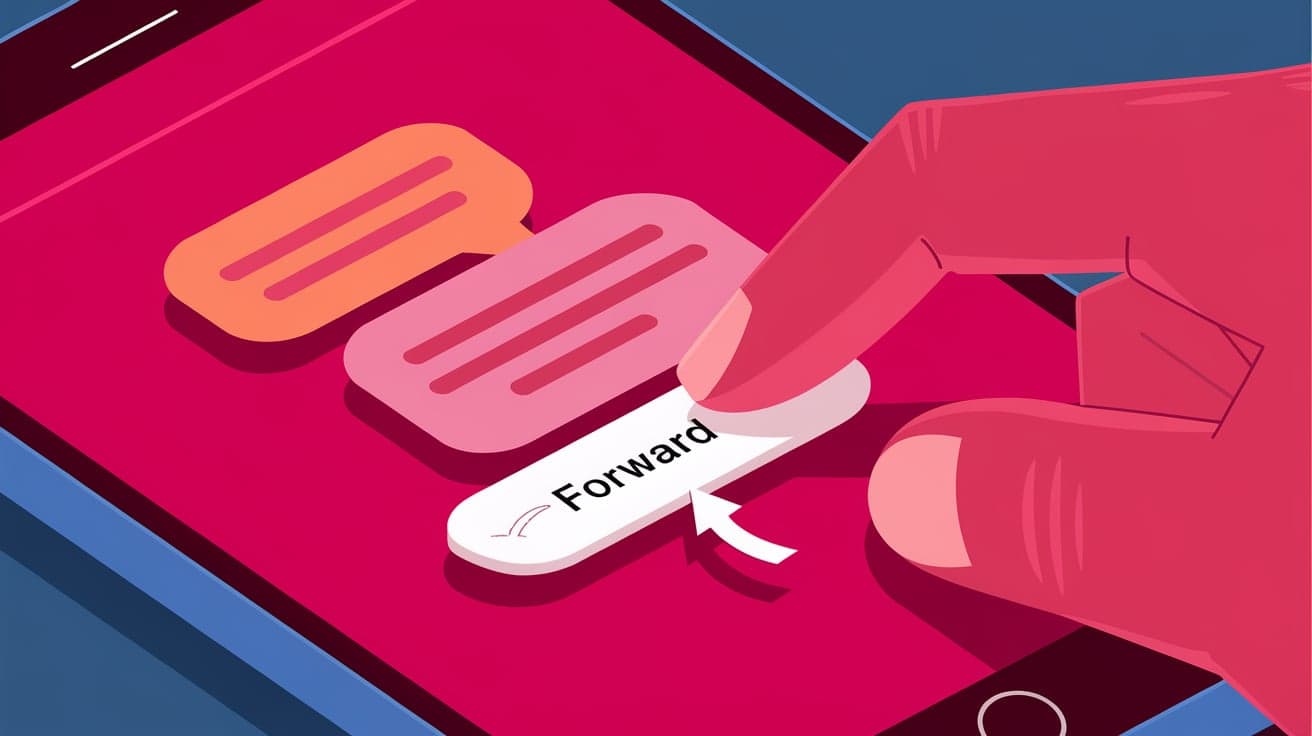
Sometimes you receive a text message that’s important enough to share with someone else. Whether it’s an address, a piece of information, or a funny message from a friend, forwarding a text on your iPhone is quick and easy. This feature works for both regular text messages (SMS) and iMessages, making it simple to pass along what you need.
In this guide, I’ll show you exactly how to forward a text message on your iPhone. We’ll also cover tips for managing forwarded messages and troubleshooting common issues.
Why Forward Text Messages on iPhone?
Forwarding text messages saves you time and ensures accuracy. Instead of retyping the message, you can send the exact text to someone else with just a few taps. Here are some common reasons to forward messages:
Sharing an address, phone number, or appointment details.
Sending a joke or interesting message to another friend.
Passing along important instructions or reminders.
Now, let’s dive into the steps to forward a text message.
Step 1: Open the Messages App
The first step in forwarding a message is to open the Messages app. This app stores all your text and iMessage conversations.
How to Do It:
Tap the green Messages app icon on your home screen.
Locate the conversation that contains the message you want to forward.
Open the conversation by tapping on it.
By opening the conversation, you’re ready to select the message for forwarding.
Step 2: Select the Message You Want to Forward
Once you’re in the conversation, you need to highlight the specific message to forward.
How to Select the Message:
Find the message you want to forward within the conversation thread.
Tap and hold the message until a pop-up menu appears.
From the options, select More. This will place a checkmark next to the message.
If you want to forward multiple messages, tap the empty circles next to other messages to select them.
Step 3: Tap the Forward Icon
After selecting the message(s), you’re ready to send it to someone else.
How to Forward:
Look for the forward arrow icon (a small curved arrow) in the bottom-right corner of the screen and tap it.
A new message screen will appear with the selected text already included.
Enter the recipient’s name, phone number, or email address in the To field.
This step ensures the message is ready to be sent to the intended person.
Step 4: Send the Forwarded Message
Now that the message is set up, it’s time to send it.
How to Send:
Double-check the recipient’s information in the To field.
Tap the green Send button (or blue if it’s an iMessage).
Your forwarded message will be delivered to the recipient.
And that’s it—you’ve successfully forwarded a text message on your iPhone!
Tips for Forwarding Text Messages
Here are a few tips to make forwarding messages even easier:
Add Multiple Recipients: You can send the forwarded message to more than one person by adding multiple contacts in the To field.
Include Additional Text: Feel free to add a note or explanation to the forwarded message before sending it.
Be Mindful of Context: Make sure the forwarded message makes sense to the recipient, especially if it’s out of context.
Troubleshooting Common Issues
Sometimes, forwarding messages doesn’t go as planned. Here are solutions to common problems:
Problem 1: Can’t See the Forward Option
- Solution: Ensure you’re holding the message for a second or two until the menu pops up. If it still doesn’t appear, restart your iPhone and try again.
Problem 2: Forwarded Message Isn’t Sending
- Solution: Check your internet connection if it’s an iMessage. For SMS, ensure you have cellular signal and your carrier allows text forwarding.
Problem 3: Recipient Didn’t Receive the Forwarded Message
- Solution: Double-check the recipient’s contact information. If it’s correct, ask them to verify their network connection or messaging app.
Alternative Ways to Share Message Content
If forwarding isn’t an option or you need to share message content differently, here are alternatives:
Copy and Paste
Tap and hold the message to bring up the menu.
Select Copy.
Open a new message or app and paste the content by holding the text field and selecting Paste.
Screenshot
Take a screenshot of the message by pressing the Side Button and Volume Up button (on Face ID models) or Home Button and Power Button (on Touch ID models).
Share the screenshot through the Messages app or another platform.
Managing Forwarded Messages
Forwarded messages are treated like any other text message, so you can:
Edit the content before sending.
Delete the forwarded message after sending it.
Add emojis, links, or attachments to make the forwarded message more engaging.
This flexibility lets you tailor messages to fit your communication style.
Conclusion
Forwarding a text message on your iPhone is simple and useful for sharing important or funny messages with others. By following these steps—opening the conversation, selecting the message, and using the forward icon—you can quickly send texts to other contacts without retyping.
Whether you’re forwarding a single message or multiple ones, the process is straightforward and can save you time. Use the tips and solutions in this guide to handle any issues, and you’ll be a pro at forwarding messages in no time.
FAQs
Can I forward a text message to multiple people on iPhone?
Yes, you can add multiple recipients in the To field when forwarding a message. Each person will receive the forwarded message.
Can I forward photos or videos sent via text message?
Absolutely! The process is the same. Select the photo or video in the conversation, tap More, and then tap the forward icon.
Why can’t I forward a text message on my iPhone?
If you don’t see the forward option, make sure your iPhone’s software is up to date. Restarting your device can also fix minor glitches.
Does forwarding a message notify the original sender?
No, forwarding a message doesn’t notify the original sender. The forwarded text will appear as a new message to the recipient.
Can I edit a message before forwarding it?
Yes, after selecting the message and tapping the forward icon, you can edit the text before sending it to the recipient.
Also read -




