
How to Fix SOS on iPhone: A Step-by-Step Guide
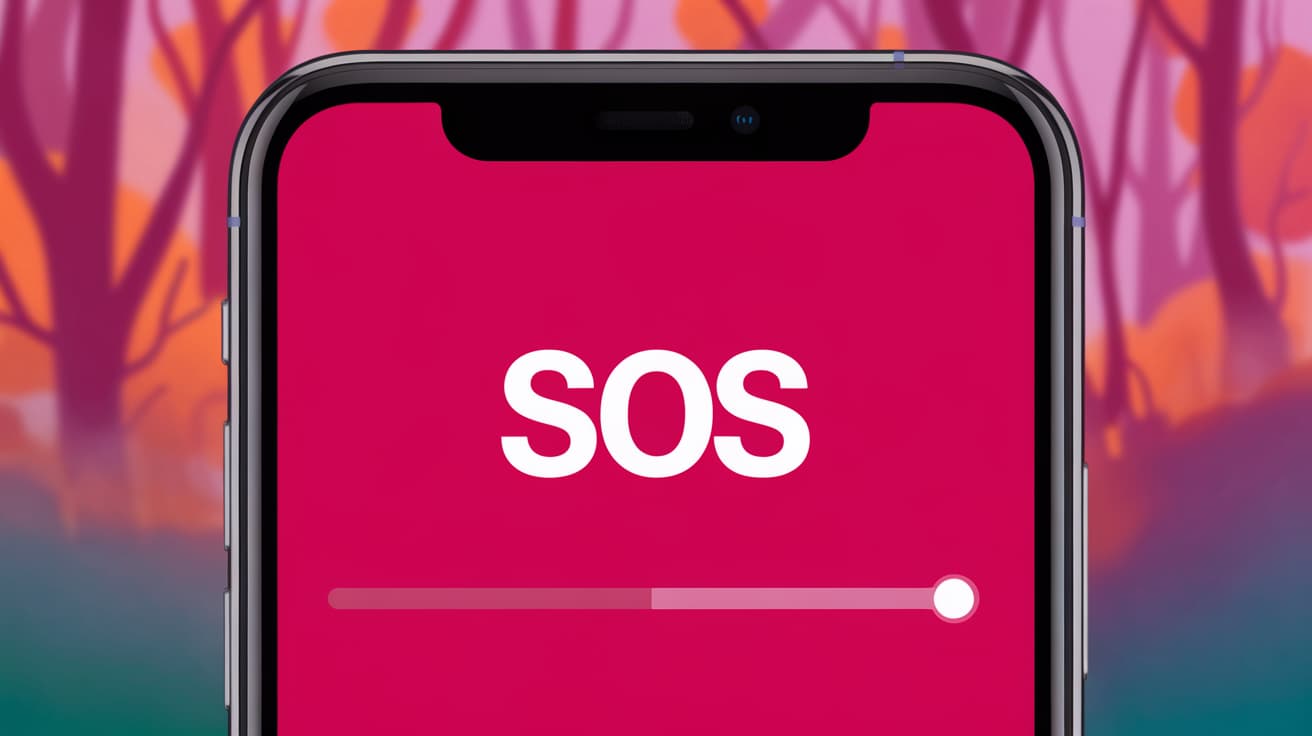
Seeing “SOS” or “SOS Only” on your iPhone can be frustrating, especially if you rely on your phone for calls, messages, or internet access. This usually means your device has lost connection to your carrier’s network and is restricted to emergency calls only. It’s a problem that can pop up unexpectedly, but the good news is there are several ways to fix it.
In this guide, I’ll walk you through the most common causes of the SOS issue on iPhone and show you simple steps to get your network connection back.
What Does SOS Mean on iPhone?
When your iPhone displays “SOS” or “SOS Only,” it means your device can only make emergency calls. This usually happens when:
Your phone has no signal from your carrier.
Your SIM card isn’t working properly.
There’s an issue with your carrier’s network.
Understanding the root cause can help you resolve the issue faster.
Step 1: Check for Network Coverage
Before diving into troubleshooting, ensure you’re in an area with good network coverage. Poor signal strength is one of the most common reasons for the SOS message.
What to Do:
Move to a location where you know your carrier’s signal is strong.
Check if other devices on the same network are working fine.
Look at the signal bars on your iPhone. If you see “No Service,” you might be out of your carrier’s coverage area.
If coverage isn’t the issue, move on to the next step.
Step 2: Toggle Airplane Mode On and Off
Airplane mode refreshes your iPhone’s connection to the network and can often fix the SOS issue.
Steps to Toggle Airplane Mode:
Swipe down from the top-right corner (on newer iPhones) or up from the bottom (on older models) to open the Control Center.
Tap the airplane icon to enable Airplane Mode.
Wait for about 10 seconds.
Tap the airplane icon again to disable Airplane Mode.
After toggling, your iPhone will try to reconnect to your carrier’s network.
Step 3: Restart Your iPhone
Restarting your iPhone can resolve minor software glitches that might be causing the SOS issue.
How to Restart:
For iPhones with Face ID:
- Press and hold the Side Button and either Volume Button until the power-off slider appears.
For iPhones with a Home Button:
- Press and hold the Power Button until the slider appears.
Drag the slider to turn off your iPhone.
Wait for about 30 seconds, then press and hold the Power Button to turn it back on.
Check if the SOS message disappears after the restart.
Step 4: Check Your SIM Card
A faulty or improperly inserted SIM card can lead to the SOS issue.
Steps to Check the SIM Card:
Locate the SIM card tray on the side of your iPhone.
Use a SIM ejector tool or a paperclip to remove the tray.
Inspect the SIM card for any physical damage or dirt.
Reinsert the SIM card securely and close the tray.
If the problem persists, try inserting the SIM card into another phone to confirm if the issue is with the SIM card or the iPhone.
Step 5: Update Carrier Settings
Outdated carrier settings can sometimes cause connection issues.
Steps to Update Carrier Settings:
Open Settings on your iPhone.
Tap General and then About.
If an update is available, you’ll see a prompt to install the latest carrier settings. Tap Update.
This ensures your iPhone has the latest configuration for your carrier’s network.
Step 6: Reset Network Settings
Resetting your iPhone’s network settings can clear any misconfigured settings that might be causing the SOS issue.
How to Reset Network Settings:
Open Settings.
Tap General and scroll down to Transfer or Reset iPhone.
Select Reset and then choose Reset Network Settings.
Enter your passcode if prompted and confirm the reset.
After the reset, you’ll need to reconnect to your Wi-Fi networks and re-enter their passwords.
Step 7: Check for Software Updates
An outdated iOS version can sometimes cause network issues. Updating your software may fix the problem.
Steps to Update iOS:
Go to Settings > General > Software Update.
If an update is available, tap Download and Install.
Follow the on-screen instructions to complete the update.
Make sure your iPhone is connected to Wi-Fi and has enough battery charge before updating.
Step 8: Contact Your Carrier
If the SOS issue persists, it might be a problem with your carrier’s network.
What to Do:
Call your carrier’s customer support line using another phone.
Explain the issue and ask if there are any outages or service disruptions in your area.
Request a SIM card replacement if the current one is faulty.
Carriers can often reset your connection from their end or provide further guidance.
Step 9: Visit an Apple Store
If none of the above steps work, it could be a hardware issue with your iPhone. In this case, visiting an Apple Store or an authorized repair center is your best option.
What to Bring:
Your iPhone.
Proof of purchase (if required).
A backup of your device (just in case repairs require erasing data).
Apple technicians can diagnose and repair hardware problems that might be affecting your iPhone’s network connectivity.
Conclusion
Fixing the SOS issue on your iPhone doesn’t have to be a headache. By following these steps—checking for coverage, restarting your device, inspecting the SIM card, and updating your settings—you can resolve most problems quickly. If all else fails, contacting your carrier or visiting an Apple Store will ensure the issue gets resolved professionally.
Remember, the SOS message is usually temporary and can often be fixed with a few simple adjustments. Try these steps, and you’ll likely have your iPhone back to normal in no time.
FAQs
What does SOS mean on iPhone?
SOS means your iPhone can only make emergency calls. It usually happens when there’s no connection to your carrier’s network.
Why is my iPhone stuck on SOS only?
Your iPhone might be stuck on SOS due to poor network coverage, a faulty SIM card, or misconfigured settings.
Can I fix SOS mode without a SIM card?
No, you’ll need a working SIM card to connect to your carrier’s network and exit SOS mode.
Does resetting network settings delete my data?
No, resetting network settings only clears Wi-Fi passwords, VPN settings, and other network configurations. Your personal data will remain intact.
When should I visit an Apple Store for SOS issues?
If you’ve tried all troubleshooting steps and the issue persists, visit an Apple Store to check for hardware problems.
Also read -




