
How to Find Downloads on iPhone
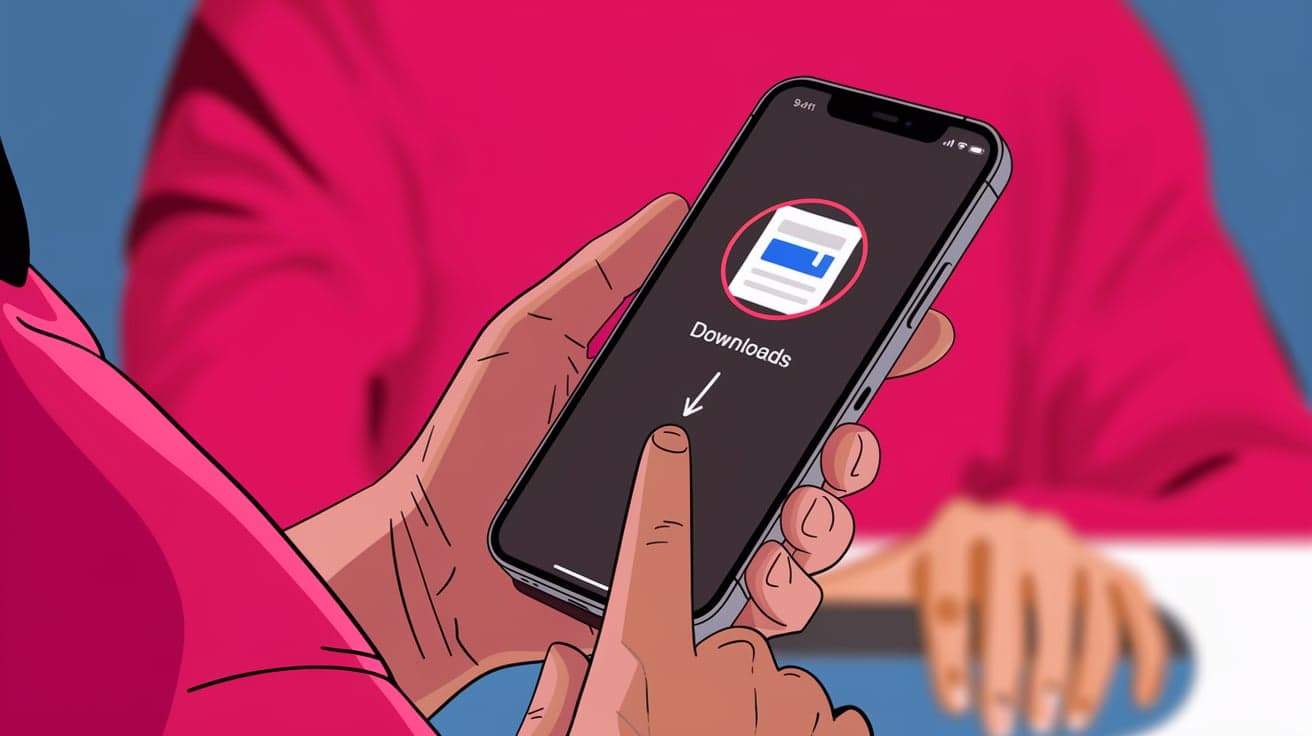
You just downloaded a file on your iPhone, but now you can’t find it. Don’t worry—you’re not alone. Unlike a computer, where all downloads go straight to a folder, iPhones handle downloads a bit differently. The good news is that once you know where to look, finding your downloads is quick and easy.
This guide will walk you through the process of finding your downloads on an iPhone. We’ll cover everything from locating files in the Files app to accessing downloads in apps like Safari and third-party apps like Google Drive. Whether it’s a document, image, or audio file, you’ll know exactly where to look by the end of this guide.
Where Do Downloads Go on an iPhone?
When you download something on your iPhone, it doesn’t just float around in your phone’s memory. Instead, it’s saved to specific locations depending on the type of file and how you downloaded it. Here are some common places where downloads go:
Files App: Most downloads, especially from Safari, are saved in the Files app, usually in the Downloads folder.
Media Apps: Photos and videos are saved to the Photos app, while music or podcasts may go to the Music or Podcasts app.
App-Specific Storage: Files downloaded through apps like Google Drive or Dropbox are stored within those apps.
Let’s break this down step by step.
How to Find Downloads in the Files App
The Files app is Apple’s go-to tool for managing documents, PDFs, and other files on your iPhone.
Step 1: Open the Files App
Look for the Files app on your Home Screen or in your App Library.
Tap to open it.
Step 2: Navigate to the Downloads Folder
In the Files app, tap Browse at the bottom.
Under Locations, select On My iPhone or iCloud Drive, depending on where your downloads are saved.
Open the Downloads folder to see your files.
Step 3: Use the Search Bar
If you don’t see your file right away, use the search bar at the top of the Files app. Type the name or file type (e.g., “PDF”) to locate it faster.
How to Find Downloads from Safari
Safari is one of the most common apps for downloading files on an iPhone. Here’s how to locate downloads from Safari:
Step 1: Check the Downloads List
Open Safari.
Tap the Downloads button (a downward arrow icon) in the toolbar.
A list of recently downloaded files will appear. Tap any file to open it.
Step 2: Go to the Files App
Safari automatically saves downloaded files to the Files app, usually in the Downloads folder. Follow the steps from the previous section to access them.
Step 3: Change the Download Location (Optional)
Go to Settings > Safari > Downloads.
Choose a different download location, such as On My iPhone or iCloud Drive.
How to Find Downloads in Third-Party Apps
If you downloaded a file through an app like Google Drive, Dropbox, or an email app, the file is often stored within that app. Here’s how to find it:
Google Drive
Open the Google Drive app.
Use the search bar at the top to find your file, or navigate through folders.
Look for files labeled with the download icon (a downward arrow).
Dropbox
Open the Dropbox app.
Navigate to the folder where the file was saved.
Use the search bar if needed.
Email Apps
Open your email app (e.g., Mail or Gmail).
Look for the email with the file attachment.
Tap the attachment to open or save it to the Files app.
How to Find Media Downloads
For media files like photos, videos, or music, they often save directly to specific apps.
Photos and Videos
Open the Photos app.
Check the Recents album for your downloaded image or video.
Use the search bar to type keywords like “screenshot” or “video” if you can’t find it.
Music and Podcasts
Open the Music or Podcasts app, depending on what you downloaded.
Look for the downloaded file under your library or the “Downloads” section.
Troubleshooting: Can’t Find Your Download?
If you’re still having trouble finding your downloaded file, here are some quick troubleshooting tips:
1. Check All Locations in the Files App
Sometimes files are saved to a folder other than Downloads. Look through folders like Documents, Desktop, or On My iPhone.
2. Use the Search Bar
The search bar in the Files app or the app you downloaded from can help you locate files faster. Type part of the file name or the file type (e.g., “PDF”).
3. Check App Settings
Some apps let you customize where downloads are saved. For example, in Safari, you can set downloads to go directly to iCloud Drive or a specific folder.
4. Re-Download the File
If you can’t find the file and you still have access to the download link, download it again and note where it saves.
Tips to Manage Downloads on iPhone
To make finding and managing downloads easier in the future, follow these tips:
1. Organize Your Files
Regularly move files from the Downloads folder to specific folders like Work or Personal within the Files app.
2. Use iCloud Drive
Turn on iCloud Drive in Settings > Apple ID > iCloud to sync downloads across all your Apple devices.
3. Rename Files Immediately
After downloading a file, rename it to something meaningful so it’s easier to find later.
4. Bookmark Important Links
If you often download from the same websites, bookmark them in Safari to save time.
Conclusion
Finding downloads on an iPhone doesn’t have to be confusing once you know where to look. Most files are saved in the Files app, while media files like photos and videos go to the Photos app. By following the steps in this guide, you can quickly locate any file you’ve downloaded.
To make things even easier in the future, organize your files regularly and customize download settings in apps like Safari. With these tips, you’ll never lose track of a download again.
FAQs
How do I find my recent downloads on iPhone?
Check the Downloads folder in the Files app. If you downloaded through Safari, you can also check the Downloads list in Safari by tapping the downward arrow icon.
Where do Safari downloads go on iPhone?
Safari downloads are saved to the Files app, usually in the Downloads folder under On My iPhone or iCloud Drive.
Can I change the download location on iPhone?
Yes, go to Settings > Safari > Downloads and choose a new location like On My iPhone or iCloud Drive.
Why can’t I find my downloaded file?
Your file may be in a different folder or saved within a third-party app. Use the search bar in the Files app or re-download the file and note its location.
How do I download files directly to Google Drive on iPhone?
When downloading a file, tap Share and choose Save to Drive. This saves the file directly to your Google Drive account.
Also read -




