
How to Drop a Pin on iPhone: A Simple Guide
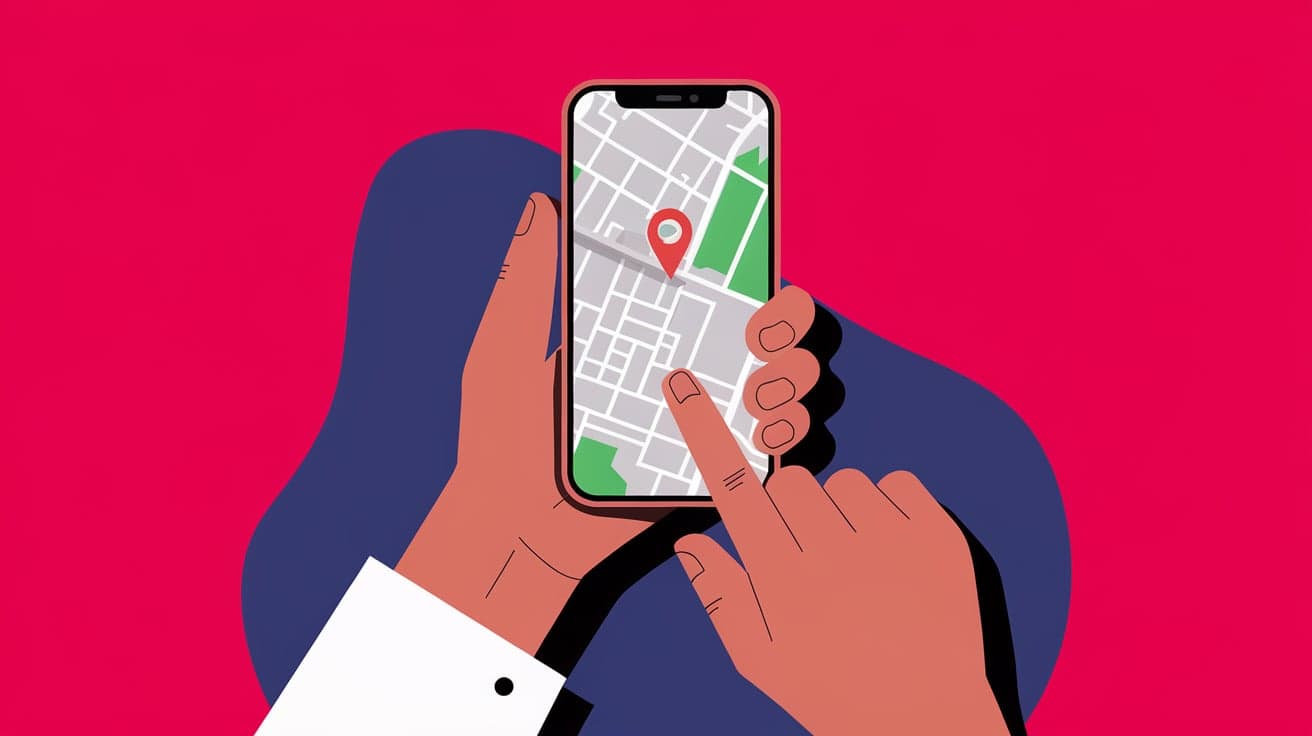
Your iPhone is packed with features, and one of the most useful is the ability to drop a pin in Apple Maps or Google Maps. Dropping a pin helps you mark a specific location, whether it’s for directions, sharing with a friend, or saving a favorite spot for later. It’s an easy feature to use, but knowing how to do it quickly can make your navigation experience smoother.
In this guide, I’ll explain exactly how to drop a pin on your iPhone, using both Apple Maps and Google Maps. By the end, you’ll be able to effortlessly save and share locations, no matter where you are.
What Does It Mean to Drop a Pin?
Dropping a pin means placing a virtual marker on a map. It’s helpful for:
Marking places without addresses.
Saving spots you want to visit again.
Sharing exact locations with others.
Now, let’s dive into the steps to drop a pin on your iPhone.
Method 1: Dropping a Pin in Apple Maps
Apple Maps comes pre-installed on every iPhone, making it a convenient option for dropping pins.
Steps to Drop a Pin:
Open Apple Maps:
- Tap the Maps app on your home screen.
Find Your Location:
- Use the search bar to enter a specific place, or manually navigate by zooming in and out on the map.
Tap and Hold:
- Long-press on the map where you want to drop the pin. A red pin will appear at that spot.
View Pin Details:
- Tap the pin to see more options like directions, adding to favorites, or sharing the location.
Why Use Apple Maps?
Apple Maps integrates well with Siri and other iPhone features, making it a seamless option for iPhone users.
Method 2: Dropping a Pin in Google Maps
Google Maps is another popular app that works perfectly for dropping pins and sharing locations.
Steps to Drop a Pin:
Open Google Maps:
- Download Google Maps from the App Store if you haven’t already, then open the app.
Navigate the Map:
- Use the search bar to find a place or browse the map manually.
Long-Press to Drop a Pin:
- Tap and hold on the map where you want the pin. A red pin will drop at that location.
Explore Pin Options:
- Tap the bottom card to see options like saving, sharing, or getting directions.
Why Use Google Maps?
Google Maps offers additional features like Street View, making it great for exploring locations in detail.
How to Share a Dropped Pin
Once you’ve dropped a pin, sharing it with someone is easy. Here’s how to do it:
Sharing in Apple Maps:
After dropping the pin, tap it.
Select the Share option from the menu.
Choose how to share (Messages, Mail, or other apps).
Sharing in Google Maps:
Tap the dropped pin to open the information card.
Tap Share and select the app or contact to share it with.
Sharing pins is perfect for meeting friends at precise locations or sending directions to someone who needs them.
Saving a Dropped Pin for Later
You might want to save a pin for future reference. Here’s how to do it:
Saving in Apple Maps:
Tap the pin and select Add to Favorites.
Access saved pins under the Favorites section in the Maps app.
Saving in Google Maps:
Tap the pin and choose Save.
Add it to a predefined list (Favorites, Want to Go, etc.) or create a new one.
This is helpful for keeping track of restaurants, landmarks, or meeting spots.
Editing or Removing a Dropped Pin
Sometimes, you might drop a pin in the wrong place or no longer need it. Here’s how to fix that:
Editing in Apple Maps:
- Unfortunately, Apple Maps doesn’t let you edit a pin directly. You’ll need to drop a new one in the correct location.
Removing in Apple Maps:
Tap the pin.
Select Remove Marker to delete it.
Editing or Removing in Google Maps:
Tap the pin’s information card.
To remove it, simply tap Remove Pin.
Google Maps offers more flexibility for managing your pins.
Using Pins for Navigation
Once you’ve dropped a pin, you can use it to navigate to that location.
Navigating with Apple Maps:
Tap the pin and select Directions.
Choose your starting point and mode of transport.
Navigating with Google Maps:
Tap the pin’s card and select Directions.
Start navigation by tapping Start.
Both apps will guide you step by step to your destination.
Advanced Tips for Using Pins
Use Pins Offline: Download maps in Google Maps to access your dropped pins without an internet connection.
Rename Pins in Google Maps: Add custom labels to your pins for easy identification.
Sync Across Devices: Sign in with your Apple ID or Google account to access pins on other devices.
Conclusion
Dropping a pin on your iPhone is a simple yet powerful feature. Whether you’re marking a meeting spot, saving a favorite place, or navigating to an unfamiliar location, dropping a pin makes it easier to stay organized and share locations with others. Both Apple Maps and Google Maps provide intuitive options for dropping, saving, and sharing pins.
Now that you know how to do it, try dropping a pin on your next trip or outing—it’s a handy skill to have in your digital toolkit.
FAQs
How do I drop a pin on iPhone without an address?
Simply open Apple Maps or Google Maps, navigate to the desired location on the map, and long-press to drop a pin.
Can I drop multiple pins at once?
No, Apple Maps and Google Maps only allow you to drop one pin at a time. However, you can save multiple pins to different lists for easy access.
How do I rename a dropped pin in Apple Maps?
Unfortunately, Apple Maps doesn’t allow you to rename pins. In Google Maps, you can add a custom label to your saved pins.
Does dropping a pin use mobile data?
Dropping a pin itself doesn’t use much data, but navigating to the pin or loading map details may consume data. Download maps offline to minimize usage.
Can I share a dropped pin with non-iPhone users?
Yes, when you share a pin from either Apple Maps or Google Maps, the recipient will receive a link that opens the location in their preferred maps app.
Also read -




