
How to Connect Your iPhone to MacBook: A Complete Guide
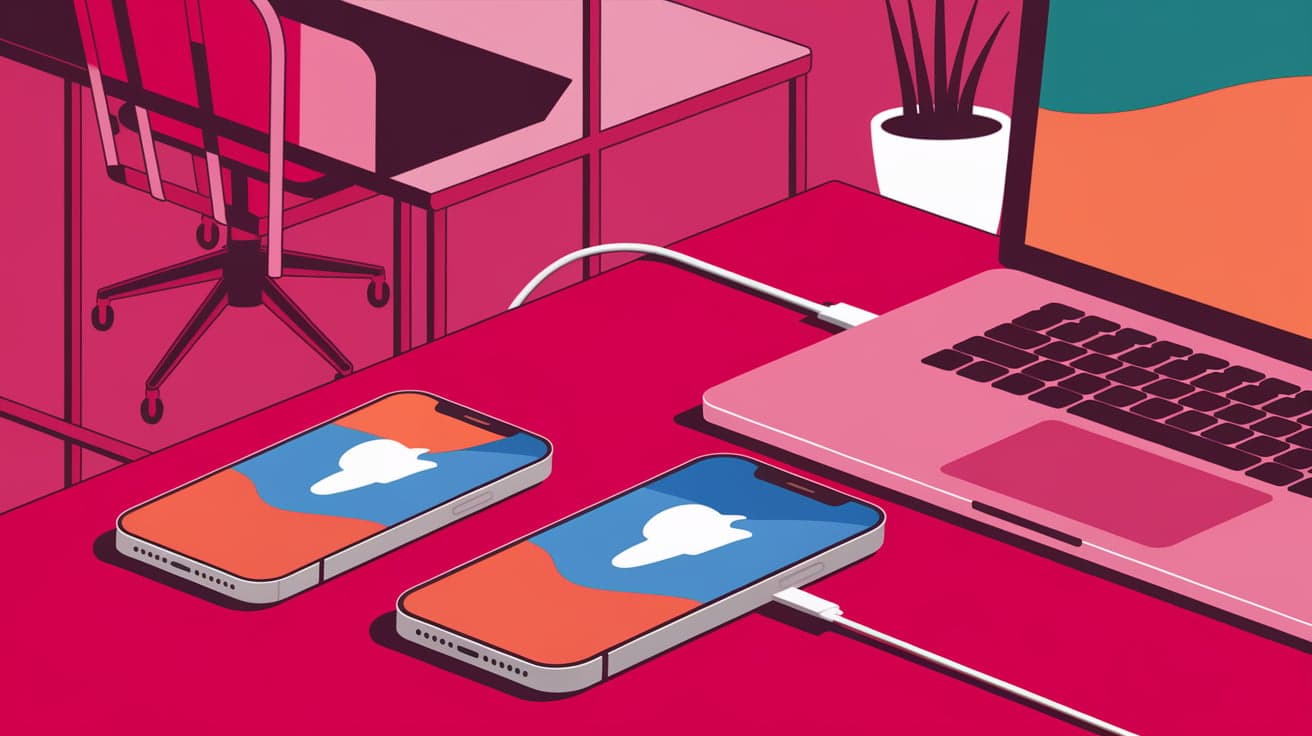
Connecting your iPhone to your MacBook opens up a world of possibilities. Whether you want to transfer files, sync your photos, or simply charge your phone, Apple has made the process seamless. The best part? There are multiple ways to do it—wired or wireless—so you can choose the method that fits your needs.
This guide will show you the simplest ways to connect your iPhone to your MacBook and help you troubleshoot common problems along the way. Whether you're a beginner or a long-time Apple user, you'll find all the steps you need right here.
Why Connect Your iPhone to Your MacBook?
Connecting your iPhone to your MacBook lets you:
Sync data like photos, videos, contacts, and calendars.
Backup your iPhone for safekeeping.
Access apps like Messages or FaceTime directly on your Mac.
Share files wirelessly with AirDrop.
Mirror your screen for presentations or streaming.
This connection is essential for managing your Apple devices and getting the most out of your ecosystem.
Method 1: Using a USB Cable
The easiest way to connect your iPhone to your MacBook is through a USB cable. This method is reliable and works even without Wi-Fi.
Steps to Connect Using a USB Cable:
Get the Right Cable:
- Use your iPhone’s Lightning cable to connect it to your MacBook. For newer MacBooks, you may need a USB-C to Lightning cable or an adapter.
Plug in Your iPhone:
- Connect one end of the cable to your iPhone and the other to your MacBook.
Trust Your MacBook:
- On your iPhone, a pop-up will ask if you trust this computer. Tap Trust and enter your passcode.
Access Your iPhone on Your Mac:
- Open Finder (macOS Catalina and later) or iTunes (older macOS versions) to view your iPhone’s contents. From here, you can sync, backup, or transfer files.
Why Use a USB Cable?
This method is fast and works even if your devices aren’t on the same Wi-Fi network. It’s also great for large file transfers.
Method 2: Connecting Wirelessly with AirDrop
AirDrop is one of the best features of Apple devices. It lets you share files wirelessly between your iPhone and MacBook without any cables.
Steps to Use AirDrop:
Enable AirDrop:
On your iPhone, swipe down to open Control Center. Tap and hold the Wi-Fi icon, then select AirDrop. Choose Contacts Only or Everyone.
On your MacBook, open Finder and click AirDrop in the sidebar. Ensure AirDrop is set to receive from your iPhone.
Select the File to Share:
- On your iPhone, choose the photo, video, or file you want to share. Tap the Share icon and select your MacBook from the AirDrop options.
Accept on Your MacBook:
- A notification will appear on your MacBook. Click Accept to save the file.
Why Use AirDrop?
AirDrop is perfect for quick file sharing. It’s fast, secure, and doesn’t require an internet connection.
Method 3: Syncing with iCloud
iCloud automatically syncs your data across your Apple devices, including your iPhone and MacBook. This method works in the background, keeping everything updated without manual effort.
Steps to Set Up iCloud:
Enable iCloud on Your iPhone:
- Go to Settings > [Your Name] > iCloud. Turn on the toggles for the data you want to sync, such as Photos, Contacts, or Notes.
Enable iCloud on Your MacBook:
- Open System Preferences > Apple ID > iCloud. Check the boxes for the data you want to sync.
Access Synced Data:
- Your iCloud data will now appear automatically in apps like Photos, Notes, and Safari on your MacBook.
Why Use iCloud?
iCloud is excellent for keeping your devices in sync without needing cables. However, it requires sufficient iCloud storage space for large files.
Method 4: Using Continuity Features
Apple’s Continuity features let you connect your iPhone and MacBook in ways that go beyond file sharing. With Continuity, you can:
Answer calls on your Mac.
Send and receive text messages.
Copy text on one device and paste it on the other.
Steps to Use Continuity:
Set Up Handoff:
On your iPhone, go to Settings > General > AirPlay & Handoff and enable Handoff.
On your MacBook, open System Preferences > General and check Allow Handoff between this Mac and your iCloud devices.
Make or Receive Calls:
- On your MacBook, open FaceTime. Go to Preferences and enable Calls from iPhone.
Copy and Paste Between Devices:
- Copy text or images on your iPhone, then paste them on your MacBook using the standard Command + V shortcut.
Why Use Continuity?
Continuity makes your devices feel like extensions of each other. It’s great for productivity and multitasking.
Method 5: Sharing Internet with Personal Hotspot
If you’re traveling and need internet on your MacBook, your iPhone can act as a hotspot.
Steps to Use Personal Hotspot:
Enable Hotspot on Your iPhone:
- Go to Settings > Personal Hotspot. Toggle it on and make a note of the Wi-Fi password.
Connect to the Hotspot on Your MacBook:
- Open Wi-Fi settings on your MacBook, select your iPhone’s name, and enter the password.
Start Browsing:
- Your MacBook will now use your iPhone’s mobile data for internet access.
Why Use Personal Hotspot?
This method is a lifesaver when you don’t have access to Wi-Fi. Just keep an eye on your mobile data usage!
Conclusion
Connecting your iPhone to your MacBook is easy and offers countless benefits. Whether you prefer using a USB cable, AirDrop, iCloud, Continuity, or Personal Hotspot, each method serves a unique purpose. Depending on your needs—file sharing, syncing, or internet access—you can choose the method that works best for you. By mastering these options, you’ll make the most of your Apple devices and enjoy a seamless user experience.
FAQs
How do I connect my iPhone to my MacBook without a cable?
You can connect wirelessly using AirDrop for file sharing, iCloud for syncing data, or Personal Hotspot for internet access.
Why isn’t my iPhone showing up on my MacBook?
Ensure your iPhone is unlocked and that you’ve tapped Trust This Computer when prompted. Restarting both devices can also help.
Is iCloud free to use?
iCloud offers 5GB of free storage. For more space, you’ll need a paid subscription, starting at $0.99/month for 50GB.
Can I use my iPhone as a webcam for my MacBook?
Yes, with iOS 16 and macOS Ventura or later, you can use the Continuity Camera feature to turn your iPhone into a webcam for your MacBook.
Does connecting my iPhone to my MacBook charge it?
Yes, using a USB cable charges your iPhone while it’s connected to your MacBook. This can be helpful for long transfers or syncing sessions.
Also read -




