
How to Change App Icons on iPhone
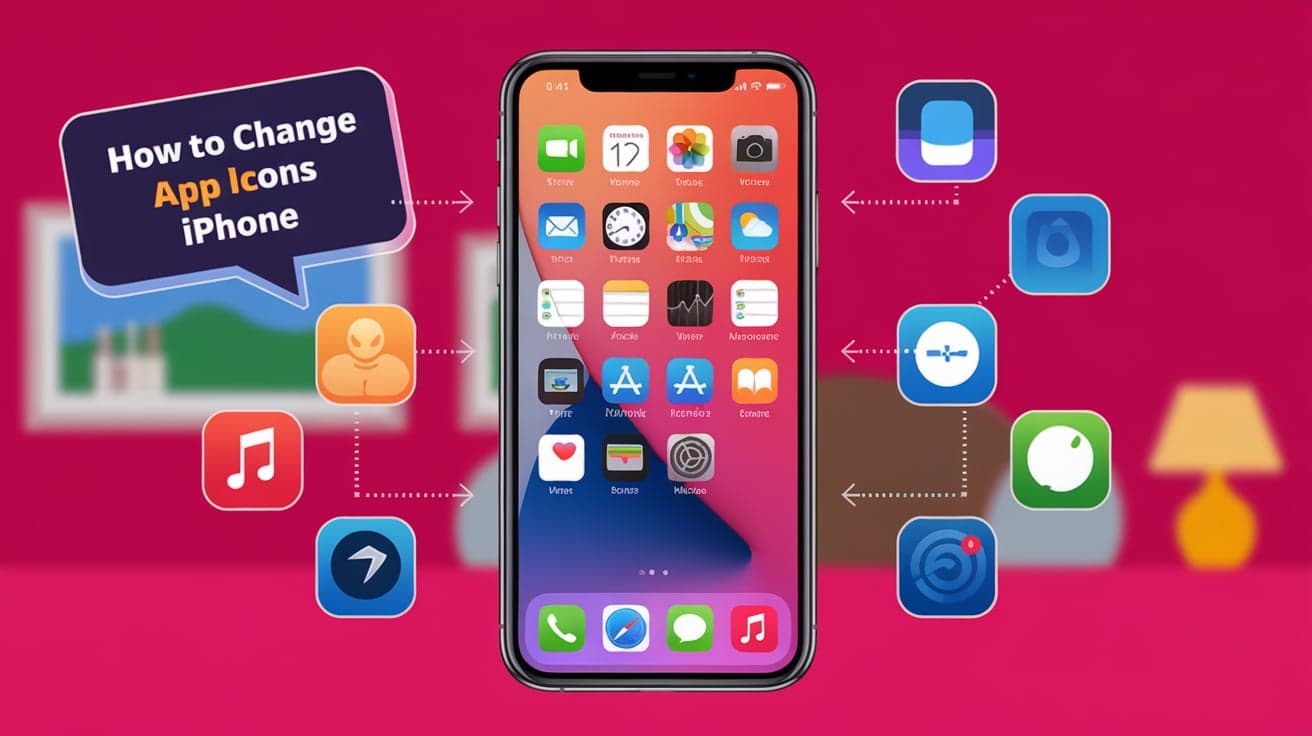
Customizing your iPhone is one of the most enjoyable ways to make it feel personal and unique. Changing app icons allows you to express your style, match a theme, or just make your home screen look fresh. Although Apple doesn’t let you change app icons directly, you can use the Shortcuts app to create custom icons for any app.
Whether you want a minimalist look or a colorful theme, this guide will walk you through the process step by step.
Why Change App Icons on iPhone?
Switching up your app icons isn’t just for looks—it’s about creating an experience that reflects your personality. Here are a few reasons why you might want to customize your app icons:
Personal Style: Match your app icons with your wallpaper or overall aesthetic.
Declutter Your Screen: Simplify your home screen by using uniform icons.
Fun Themes: Create seasonal themes, like spooky icons for Halloween or festive ones for Christmas.
Organized Layout: Use custom icons to identify frequently used apps easily.
Now that you’re ready to get started, let’s dive into the steps!
What You’ll Need
Before you begin, make sure you have these tools:
iPhone running iOS 14 or later: Custom app icons are supported with the Shortcuts app starting from iOS 14.
Shortcuts app: This app comes pre-installed on most iPhones. If you’ve deleted it, you can re-download it from the App Store.
Custom icons: You can find free or paid icon sets online, or create your own using apps like Canva or Photoshop.
Patience: While the process is straightforward, it might take a bit of time if you’re customizing multiple icons.
How to Change App Icons Using the Shortcuts App
Changing app icons involves creating a shortcut that opens the app and assigning it a custom image.
Step 1: Open the Shortcuts App
Launch the Shortcuts app on your iPhone.
Tap the + button in the top-right corner to create a new shortcut.
Step 2: Add the App You Want to Customize
Tap Add Action.
Search for Open App and select it.
Tap the word App (highlighted in blue) and choose the app you want to customize.
Step 3: Customize the Icon
Tap the three dots (...) in the top-right corner.
Give your shortcut a name (this will appear on your home screen).
Tap Add to Home Screen.
Under Home Screen Name and Icon, tap the icon to choose a custom image.
Select Choose Photo to use an image from your camera roll.
Resize the image as needed and tap Choose.
Step 4: Save Your Custom Icon
Edit the name that will appear under the icon (if needed).
Tap Add in the top-right corner.
Your custom icon will now appear on the home screen.
Repeat these steps for every app you want to customize.
Tips for Choosing Custom Icons
Here are some tips to make your custom icons stand out:
Pick a Theme: Decide on a cohesive theme, like pastel colors, neon designs, or black-and-white icons.
Use High-Quality Images: Low-resolution images can appear pixelated. Look for high-quality icon sets online.
Organize Beforehand: Plan your home screen layout before adding new icons for a smoother process.
Deleting Default App Icons
After creating custom icons, you might want to hide the original app icons to keep your home screen clean. Unfortunately, you can’t delete the default app icons, but you can move them to the App Library:
Press and hold the original app icon.
Tap Remove App.
Select Move to App Library.
This keeps the original app accessible while decluttering your home screen.
Using Third-Party Apps for Custom Icons
If the Shortcuts method feels too tedious, you can use third-party apps like Brass, ScreenKit, or Widgetsmith. These apps provide pre-made icon sets and streamline the customization process.
How to Use Brass or ScreenKit:
Download the app from the App Store.
Browse through the icon themes and select one you like.
Follow the app’s instructions to install the icons.
While these apps make customization faster, some features might require a purchase.
Managing Notifications and Shortcuts Behavior
One downside of using the Shortcuts method is the brief banner notification that appears whenever you open a custom app. While you can’t completely remove this notification, you can minimize its impact by:
Reducing Distractions: Focus on the aesthetic benefits of custom icons rather than worrying about the banner.
Using Third-Party Launchers: Some apps like Brass eliminate this issue by integrating directly with the apps.
How to Change Folder Icons on iPhone
Unfortunately, iOS doesn’t allow custom icons for folders. However, you can use creative naming or emoji to label your folders and give them a personalized touch:
Tap and hold the folder name.
Enter a custom name or add emojis for a fun look.
This can add a unique flair to your folders even without custom icons.
Restoring Original App Icons
If you want to go back to the default icons, it’s easy:
Press and hold the custom app icon.
Select Delete Bookmark (this won’t delete the app itself).
Drag the original app icon back from the App Library to your home screen.
This restores your home screen to its original state.
Conclusion
Changing app icons on your iPhone is a creative way to make your device truly yours. Whether you use the Shortcuts app or third-party apps like Brass, the process is straightforward and rewarding. While it might take some time to customize every icon, the result is a visually appealing home screen that reflects your style. Experiment with different themes, images, and layouts to find the look that’s perfect for you. With this guide, you’re ready to transform your iPhone into a device that’s as unique as you are.
FAQs
Can I change app icons without using the Shortcuts app?
No, iOS requires the Shortcuts app to create custom app icons. Third-party apps like Brass or ScreenKit use Shortcuts behind the scenes.
Do custom app icons affect app performance?
No, custom icons created with Shortcuts don’t impact app performance. However, they might cause a brief notification banner when you open the app.
Are there free icon sets available?
Yes, many websites offer free icon sets. Search for “free iPhone icon packs” to find options. Apps like Canva also allow you to design your own icons for free.
Can I change the icon for built-in apps like Safari or Mail?
Yes, you can change icons for built-in apps using the Shortcuts method, just like for third-party apps.
How do I get rid of the original app icons?
You can’t delete default app icons, but you can move them to the App Library to keep your home screen clean.
Also read -




