
Blurring Background in iPhone Photos: A Simple How-To
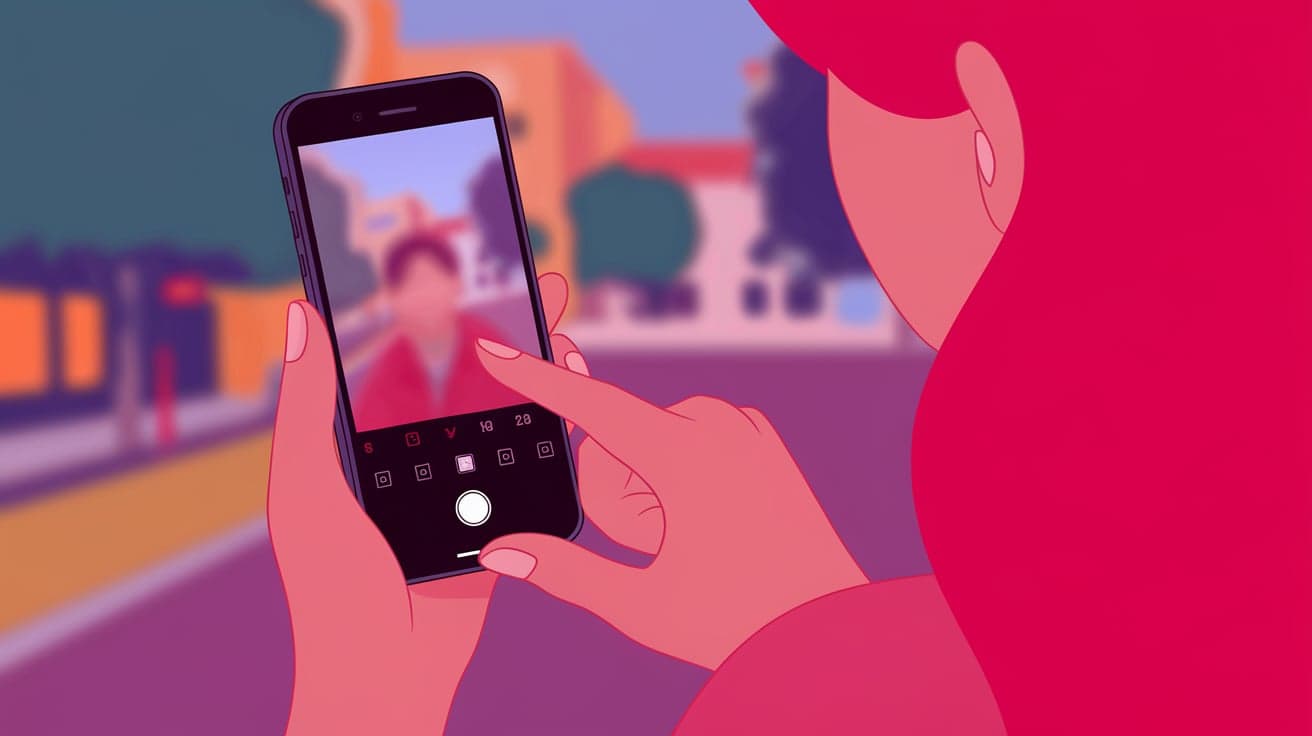
Taking stunning photos with a blurred background isn’t just for professional photographers anymore. Your iPhone has built-in tools to create that soft, dreamy effect, making your subject stand out. This technique, often called “bokeh,” is perfect for portraits, product shots, or any photo where you want to emphasize the subject. Whether you’re using Portrait Mode or editing a photo afterward, blurring the background is easier than you might think.
In this guide, I’ll show you step-by-step how to blur the background on your iPhone and take your photography to the next level.
Why Blur the Background?
Blurring the background helps focus attention on the main subject of your photo. It’s great for:
Portraits: Highlight a person’s face while softening distractions in the background.
Product Photography: Make your product stand out by creating a clean, professional look.
Creative Photography: Add depth and artistic flair to your photos.
iPhones make it easy to achieve this effect without needing additional equipment or editing apps.
Using Portrait Mode to Blur the Background
The easiest way to blur the background on your iPhone is by using Portrait Mode, available on newer models starting with the iPhone 7 Plus.
Step 1: Open the Camera App
Launch the Camera app on your iPhone.
Swipe through the modes at the bottom until you find Portrait.
Step 2: Frame Your Subject
Position your subject within 2-8 feet from the camera (the app will guide you if you’re too close or far).
Make sure the subject is well-lit for best results.
Adjust the frame so the subject is centered.
Step 3: Capture the Photo
When the background blurs and “Natural Light” or another Portrait Mode effect appears, tap the shutter button.
Review the photo to ensure the background blur (bokeh) effect is as you want it.
Portrait Mode automatically creates a depth-of-field effect, making the background softer and the subject sharper.
Adjusting the Background Blur in Portrait Photos
After taking a photo in Portrait Mode, you can fine-tune the blur effect using your iPhone’s editing tools.
Step 1: Open the Photo
Go to the Photos app.
Find the Portrait photo you want to edit and tap on it.
Step 2: Adjust Depth Control
Tap Edit in the top-right corner.
Use the Depth Control slider (a horizontal bar with f-numbers, like f/1.4 to f/16) to adjust the blur level.
Lower f-numbers: More background blur.
Higher f-numbers: Less background blur.
Tap Done to save your changes.
This feature is available on iPhones with newer models like the iPhone XS and later.
Using Focus Filters to Blur Background in Videos
If you’re recording a video and want the background blurred, use Cinematic Mode, available on iPhone 13 models and later.
Step 1: Open the Camera App
Launch the Camera app.
Swipe to Cinematic Mode.
Step 2: Adjust Focus
Frame your subject as you would for a photo.
Tap the subject to lock focus and create a blurred background.
Record the video by tapping the red button.
Cinematic Mode adjusts the depth-of-field in real time, making your videos look more professional.
Blurring Background in Existing Photos
If you’ve already taken a photo and want to add a blur effect, you can do it using editing tools on your iPhone.
Step 1: Use the Photos App
Open the Photos app and select the photo you want to edit.
Tap Edit.
Step 2: Apply a Blur Effect
Scroll through the editing options and select Portrait if available.
If Portrait isn’t an option, use third-party apps like Snapseed or AfterFocus for manual background blur.
Save your edits by tapping Done.
This is a great way to enhance older photos or pictures taken without Portrait Mode.
Third-Party Apps for Blurring Backgrounds
If your iPhone doesn’t support Portrait Mode or you want more control, third-party apps can help. Here are some popular options:
1. Snapseed
Snapseed is a free photo editing app with a “Lens Blur” tool to manually add background blur.
Open the app and import your photo.
Select Tools > Lens Blur.
Adjust the blur intensity and focus area.
2. AfterFocus
This app lets you draw focus areas manually and blur everything else.
Import your photo into the app.
Use the brush tool to select the subject.
Adjust the blur settings for the background.
3. Focos
Focos simulates DSLR-like effects and allows you to adjust depth even in regular photos.
Open the app and select a photo.
Adjust the depth slider to create the desired background blur.
These apps work well for iPhones without built-in Portrait Mode or when you want advanced customization.
Tips for Better Background Blur
1. Use Good Lighting
Blurring works best when the subject is well-lit and the background isn’t too busy.
2. Choose a Simple Background
Plain or lightly textured backgrounds make the blur more noticeable and effective.
3. Keep Your Subject Centered
Ensure the subject is in focus to maximize the bokeh effect.
4. Use Third-Party Lenses
Add-on lenses, like those from Moment, can enhance the blur effect by mimicking DSLR results.
Conclusion
Blurring the background on your iPhone is simple and makes your photos look more professional. Whether you use Portrait Mode, Cinematic Mode, or a third-party app, you have plenty of options to create stunning images. With built-in tools for adjusting depth and advanced apps for customization, you can master the art of background blur and take your photography skills to the next level. Try these methods today and watch your photos transform!
FAQs
Can I blur the background on older iPhone models?
Yes, you can use third-party apps like Snapseed or AfterFocus to manually add a blur effect.
Which iPhones support Portrait Mode?
iPhones starting from the iPhone 7 Plus support Portrait Mode, though features vary by model.
How do I blur the background in videos?
Use Cinematic Mode, available on iPhone 13 models and later, to blur the background while recording.
Can I adjust the blur level after taking a photo?
Yes, with Depth Control on newer iPhones (XS and later), you can adjust the background blur in the Photos app.
Are there free apps for blurring backgrounds?
Yes, apps like Snapseed and AfterFocus offer free tools for adding background blur to your photos.
Also read -




